How Can We Help?
Setting Up Your Email Signature in aNinja
When sending emails through aNinja, adding an email signature helps convey professionalism and ensures recipients can easily reach you. Your signature is automatically included at the bottom of each email you send.
What Is an Email Signature?
An email signature is a personalized block of text or design that appears at the end of your emails. It’s a simple yet effective way to share your identity and contact information with your recipients.
A well-designed signature can leave a strong impression and typically includes:
- Avatar and/or company logo
- First and last name
- Job title, department, and company name
- Email address and phone number
- Company physical address
- Social media icons
- Optional: promotional banner or special offer
How to Add or Update Your Email Signature in aNinja
Follow these steps to set up your email signature:
- Log in to your aNinja account.
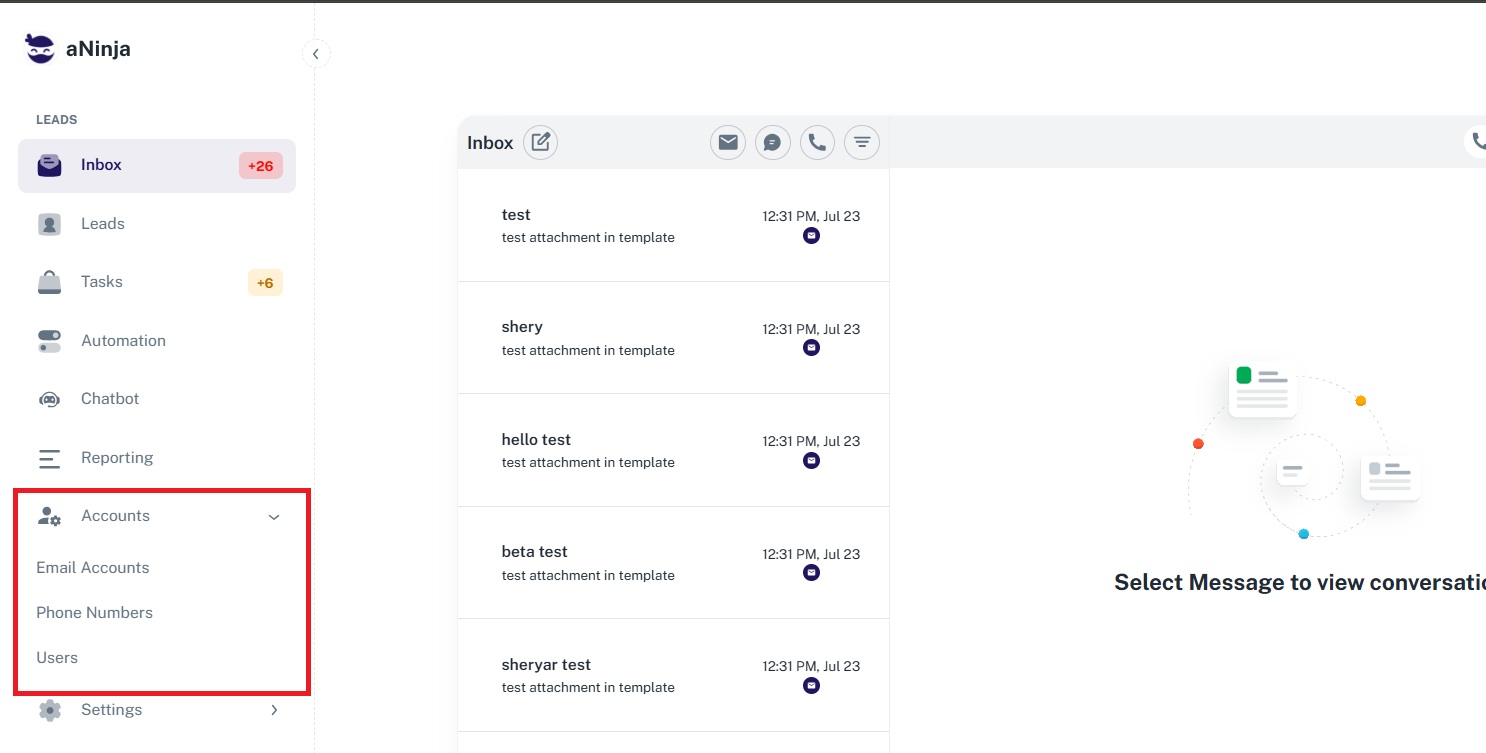
- Click on the Accounts dropdown in the left sidebar.
- Select Email Accounts from the dropdown list.
- Locate your email account and click the edit (pen) icon.
- A popup window will appear. Enter your email signature in the designated field.
- Click Update to save your changes.

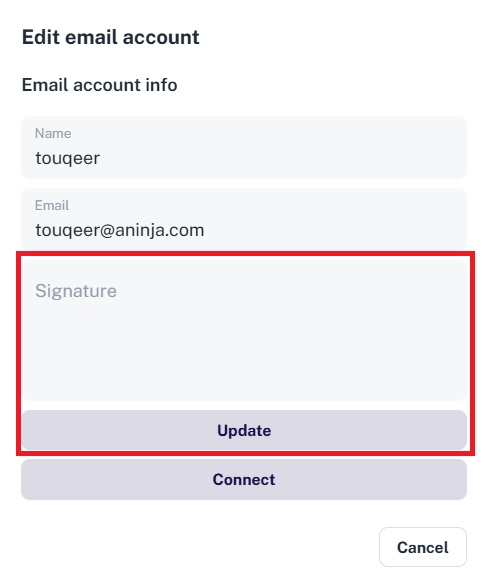
Once saved, your signature will automatically appear at the bottom of every email you send via aNinja.
Need Help?
If you need assistance designing or updating your signature, feel free to reach out to our support team via in-app chat or visit the Help Center.
For related topics, you might find these helpful: