How Can We Help?
Managing Notifications in aNinja
This page provides an overview of how to manage your notifications in aNinja and customize them based on your preferences. aNinja offers multiple ways to stay informed about activity in your account through email and desktop alerts.
Accessing Notification Settings
To configure your notifications:
- Log in to your aNinja account.
- Click the Settings icon located at the bottom-left corner of your screen.
- Select Notifications from the settings menu.

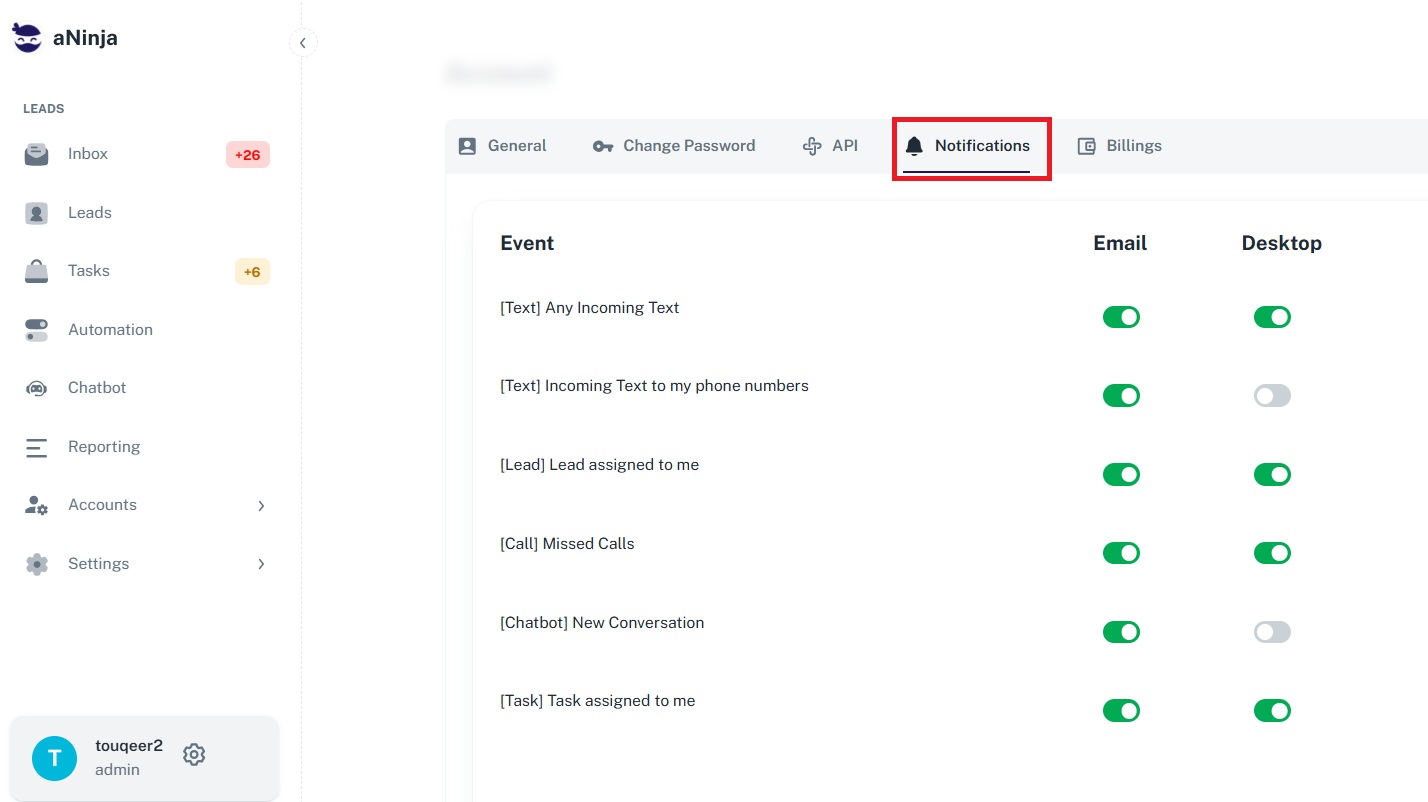
You’ll see three sections: Events, Email, and Desktop.
Notification Types
📅 Events
The Events section lets you choose which types of activity you’d like to be notified about. Available events include:
- [Text] Any Incoming Text – Receive alerts for any incoming messages.
- [Text] Incoming Text to my phone numbers – Be notified when messages are sent to your assigned phone numbers.
- [Lead] Lead assigned to me – Get alerted when a lead is assigned to you.
- [Call] Missed Calls – Receive notifications about missed calls.
- [Chatbot] New Conversation – Get notified when someone starts a chat via your aNinja chatbot.
- [Task] Task assigned to me – Stay informed when a task is assigned to you.
📧 Email Notifications
Use the toggles under the Email column to enable or disable email alerts for selected events.
💻 Desktop Notifications
Toggle desktop notifications to receive real-time alerts on your co