How Can We Help?
Launching a Text or Email Sequence to a Bulk Import List
In aNinja, you can upload a list of leads via CSV and quickly launch a text or email sequence targeting that specific list. This guide walks you through the updated process in aNinja 2.0.
Importing a CSV List of Leads
- Log in to your aNinja account.
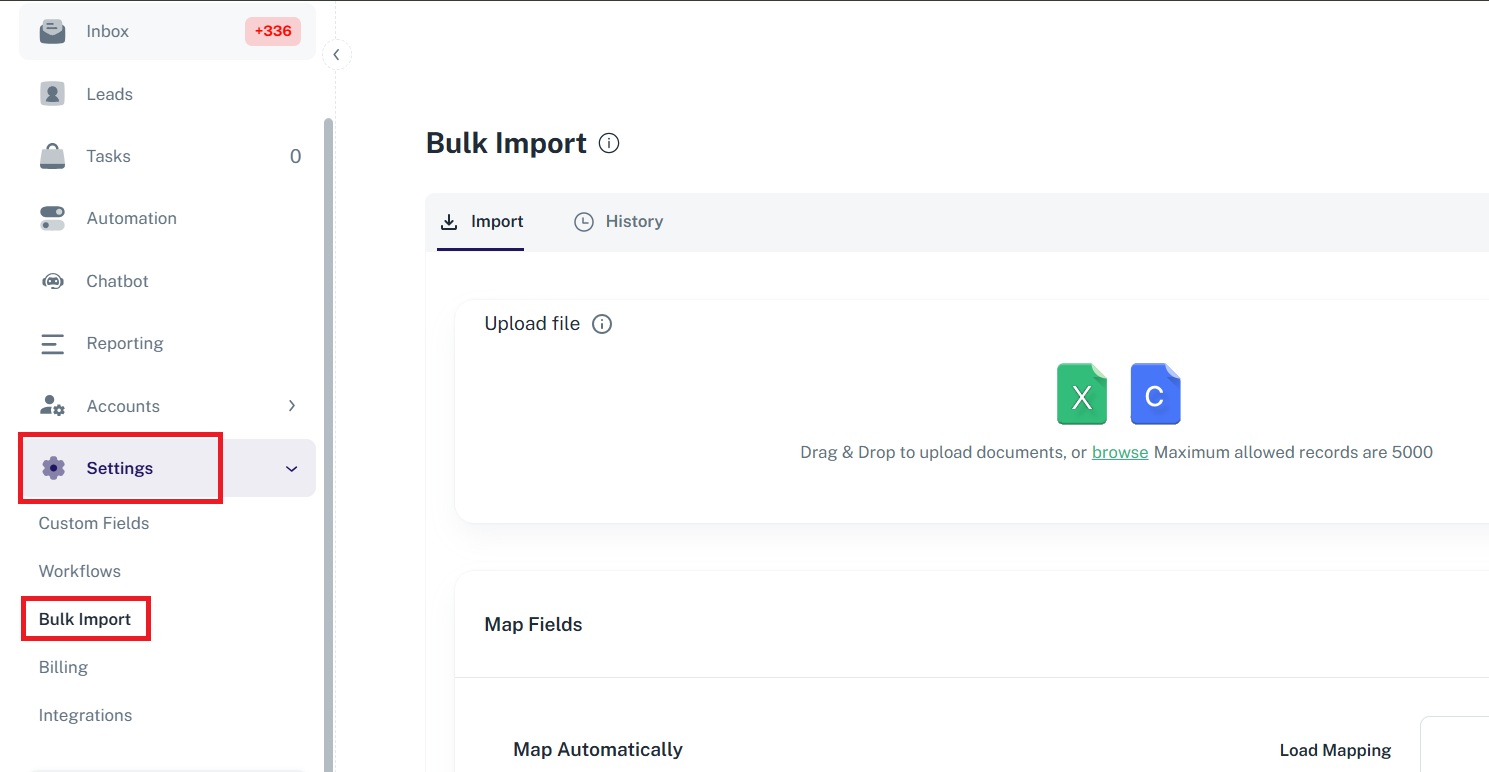
- Click on the Settings dropdown in the left sidebar.
- Select Bulk Import from the dropdown options.
- Upload your CSV file containing the lead data.
Viewing Your Uploaded File
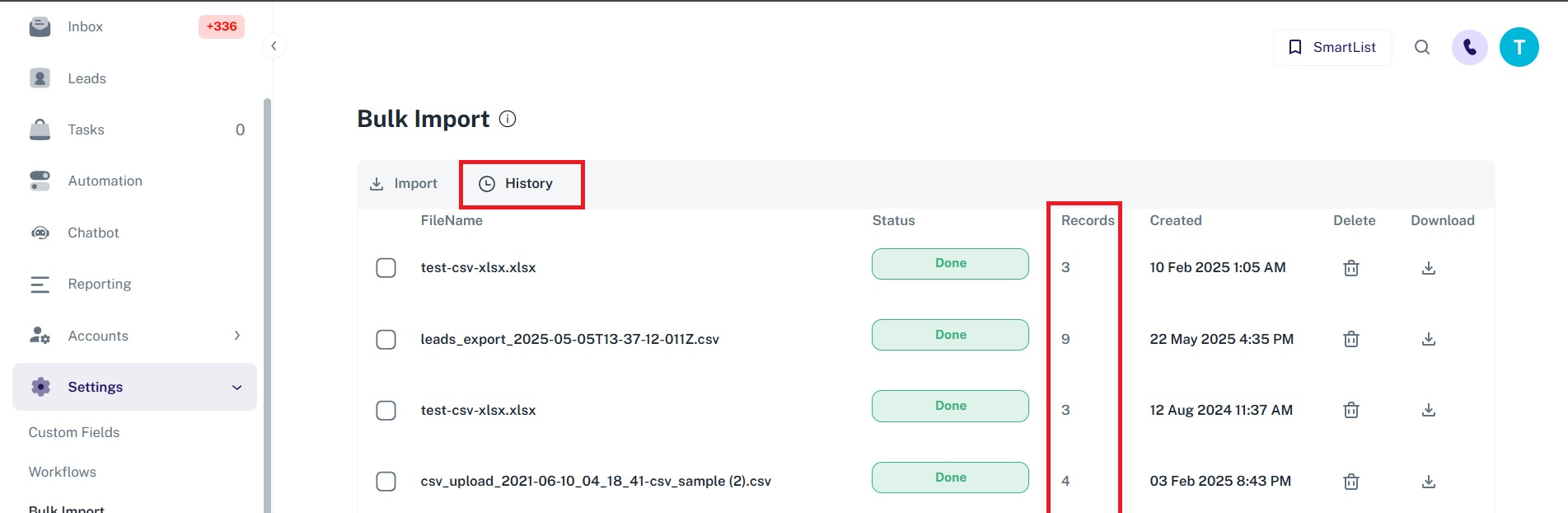
- After uploading, click on the History tab at the top of the Bulk Import page.
- Locate the file you just uploaded.
- Click the number shown under the Records column to view the leads imported from that file.
This action opens the Leads page with a search filter applied. At the top of the page, you’ll see the query used to retrieve this lead list, which looks like:
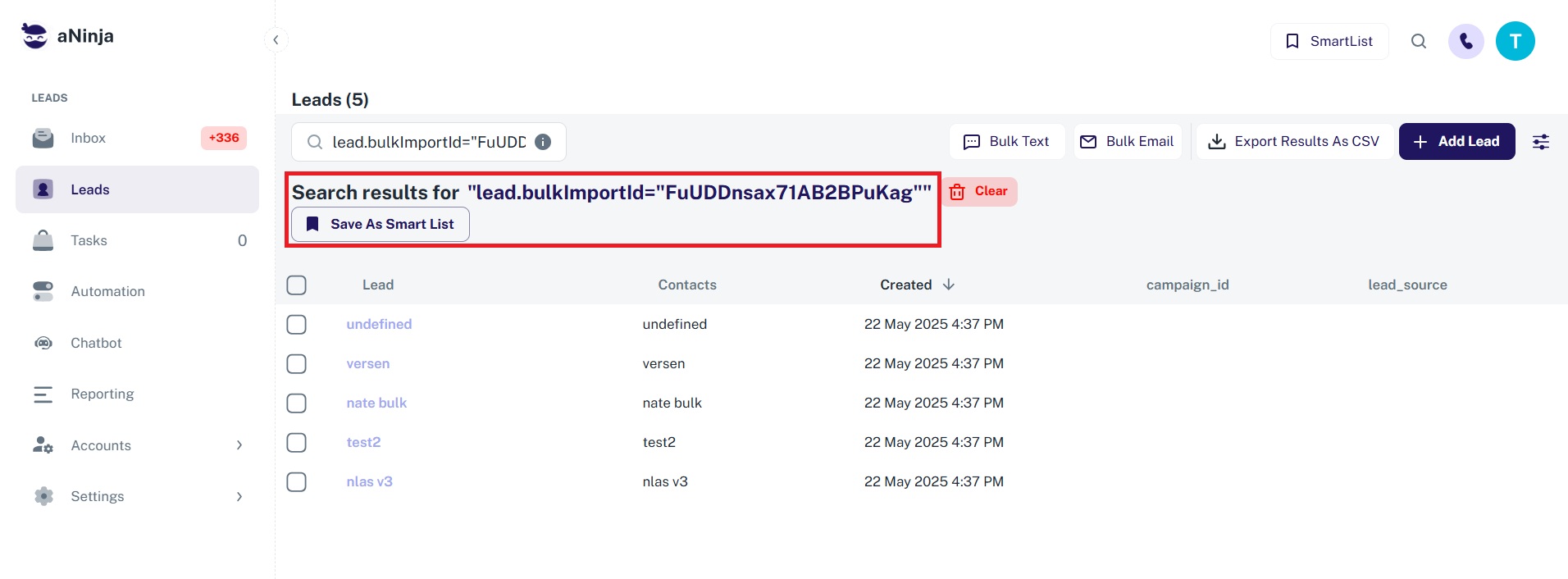
lead.bulkImportId=YOUR-BULK-IDLaunching a Text or Email Sequence
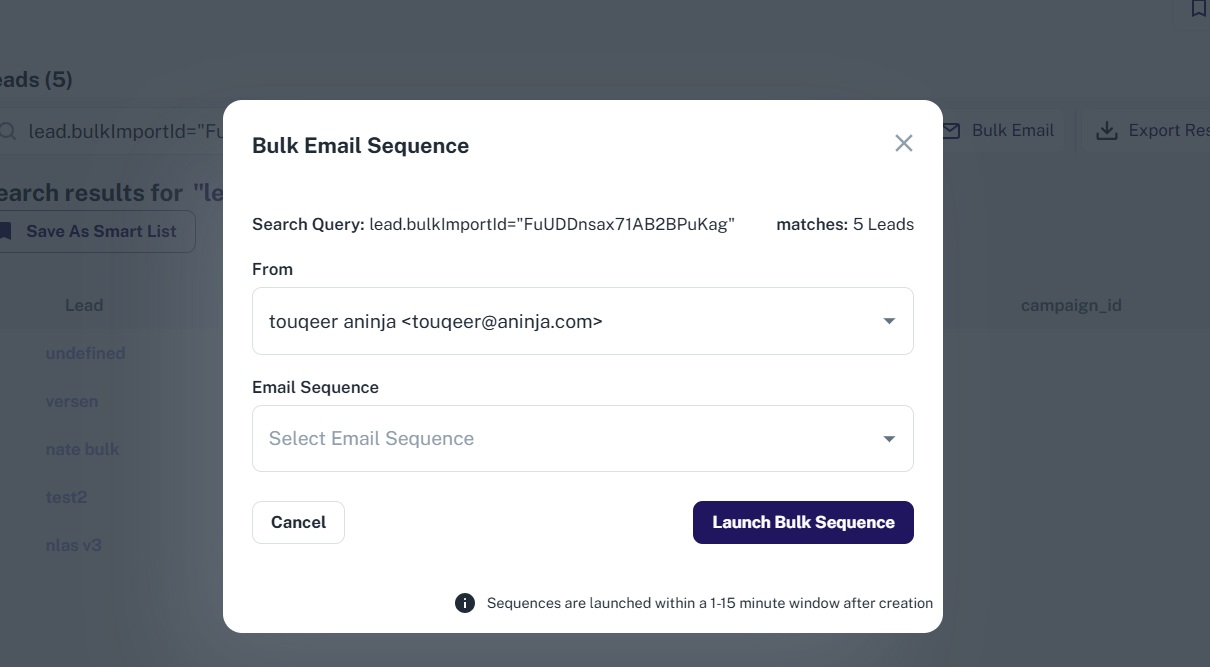
Once you have the lead list loaded using the bulk import filter, you can send a bulk sequence:
- Use the query shown in the top navigation bar to identify your list (e.g.,
lead.bulkImportId=12345). - Click either the Bulk Email Sequence or Bulk Text Sequence button at the top of the Leads page.
- Follow the prompts to create and send your sequence.
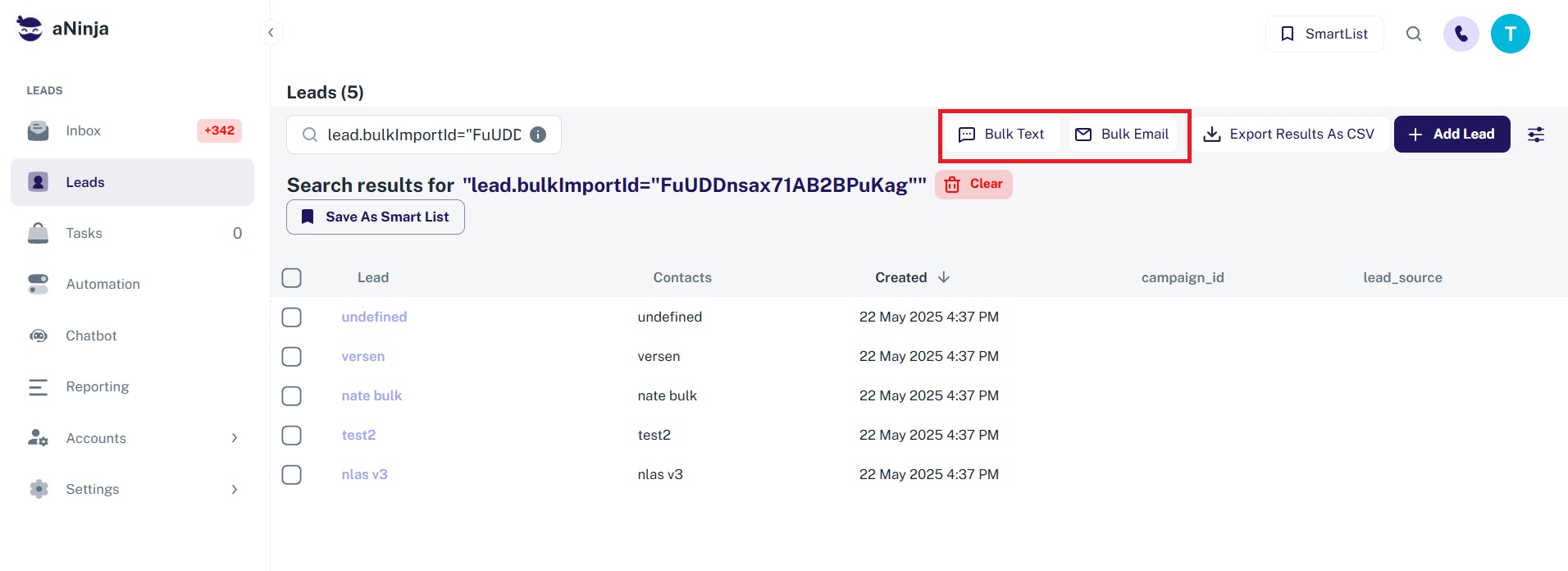
Tip: You can save this filtered view as a Smartlist for future use by clicking the “Save as Smartlist” option at the top.
Need Help?
If you need assistance with importing or launching a sequence, feel free to reach out to our support team at [email protected].