How Can We Help?
Integrating Monday.com with aNinja
This step-by-step guide shows you how to connect Monday.com with aNinja to automate lead tracking and streamline workflows. Follow these simple steps to sync your data effectively.
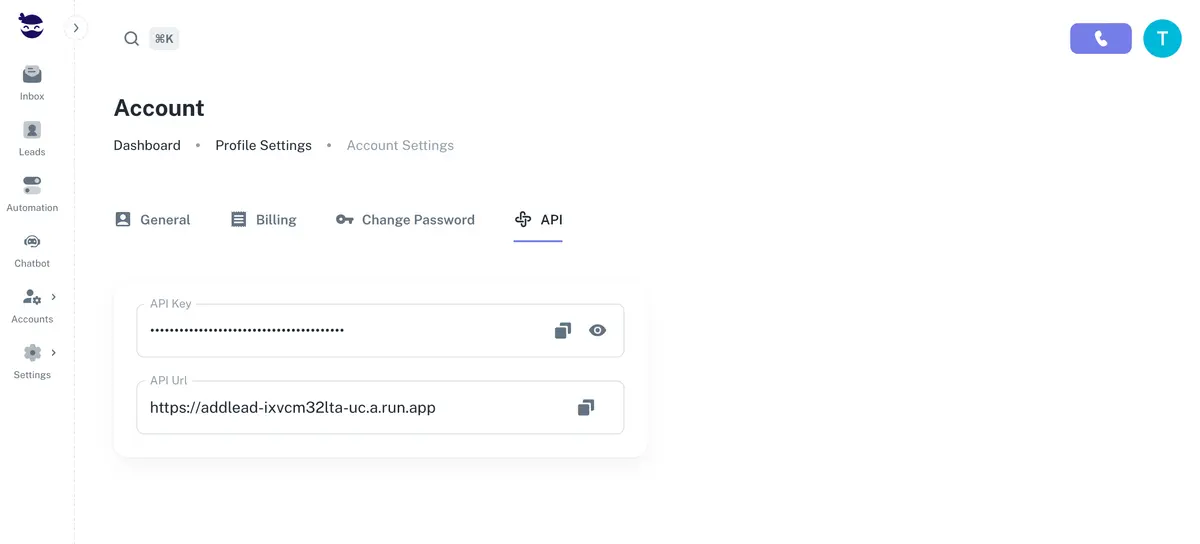
Step 1: Retrieve Your aNinja API Key and URL
- Log in to aNinja 2.0
- Navigate to Your Account Settings > API
- Click on your name at the top-left corner and select Profile Settings
- Open the API tab to view your API Key and API URL

Step 2: Configure the Webhook in Monday.com
- Open your Monday.com dashboard
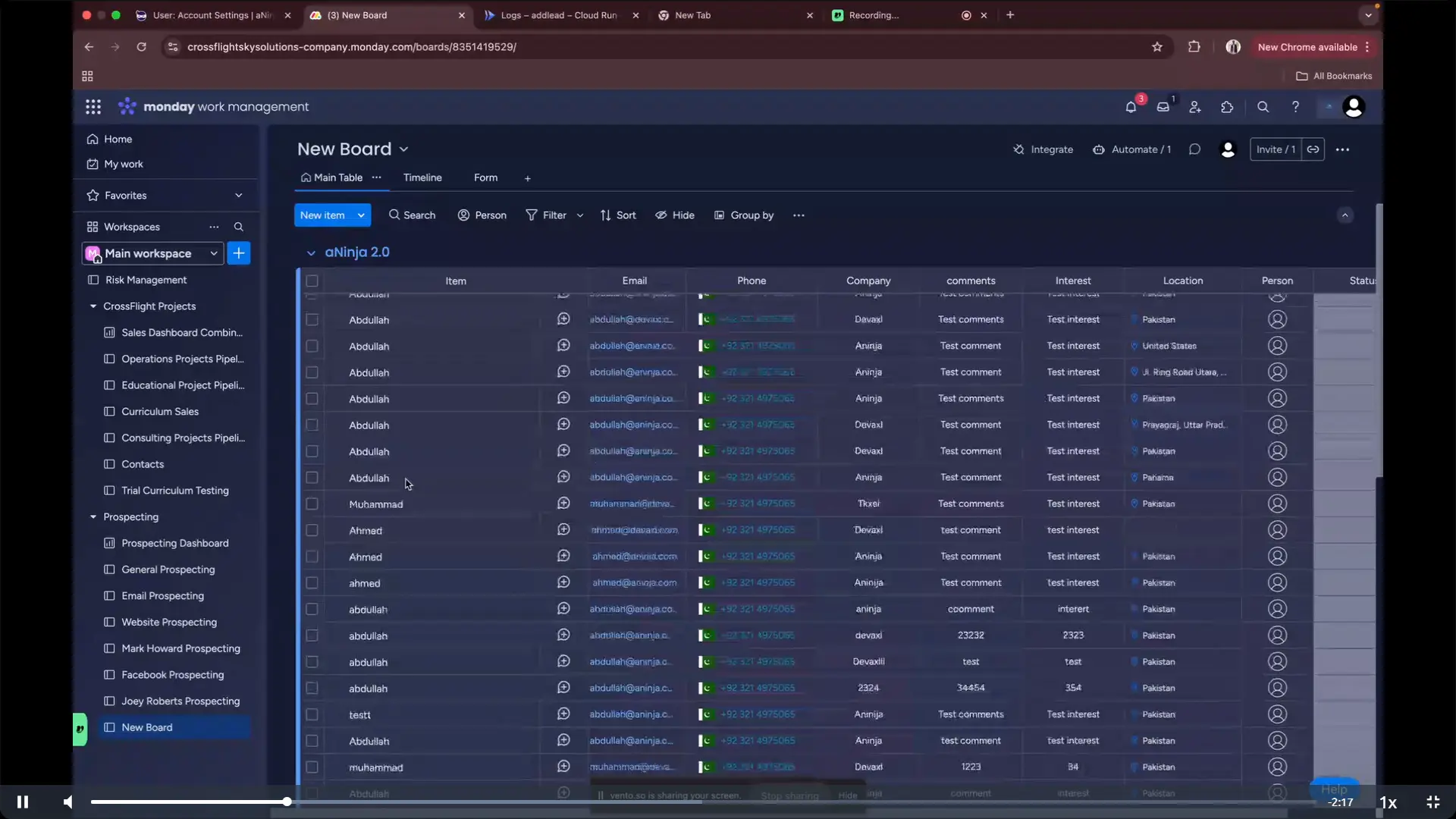
- Select the board you want to integrate
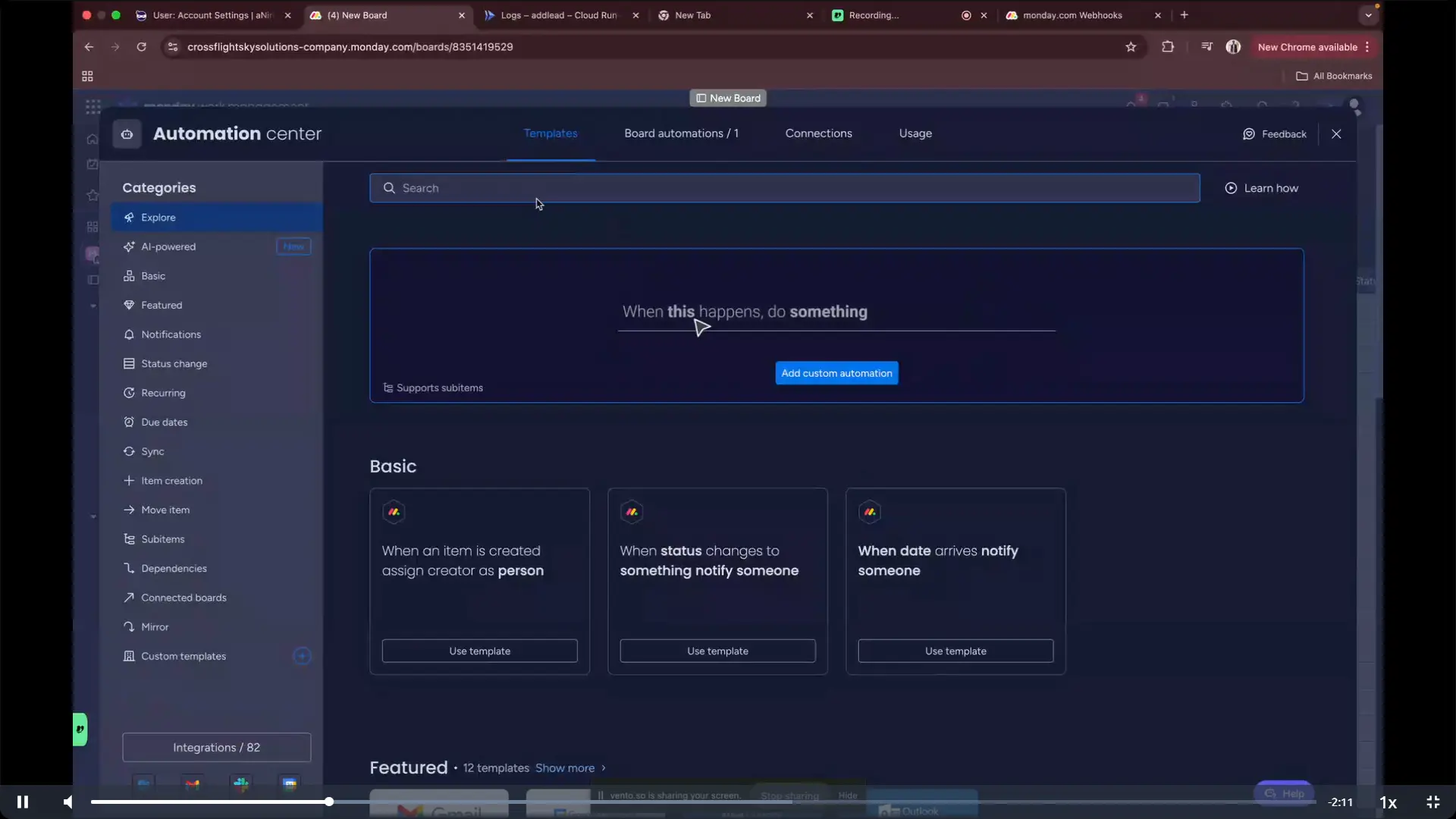
- Go to Automate and search for Webhook
- Find the automation template: “When an item is created, send a webhook”
- Click Use This Template

Check Existing Connections:
- If an integration already exists, remove the previous one
- Add a new Webhook URL with your aNinja API key appended

Webhook Format:
In the Request URL field under Feed Settings, enter:
https://addlead-z6dlaugova-uc.a.run.app?apiKey=YOUR_API_KEY
Example:
https://addlead-z6dlaugova-uc.a.run.app?apiKey=a5b702255f5d55779e9bcc47a2562b890fdcc047Step 3: Test Your Integration
- Click Create Automation to set up a new automation rule
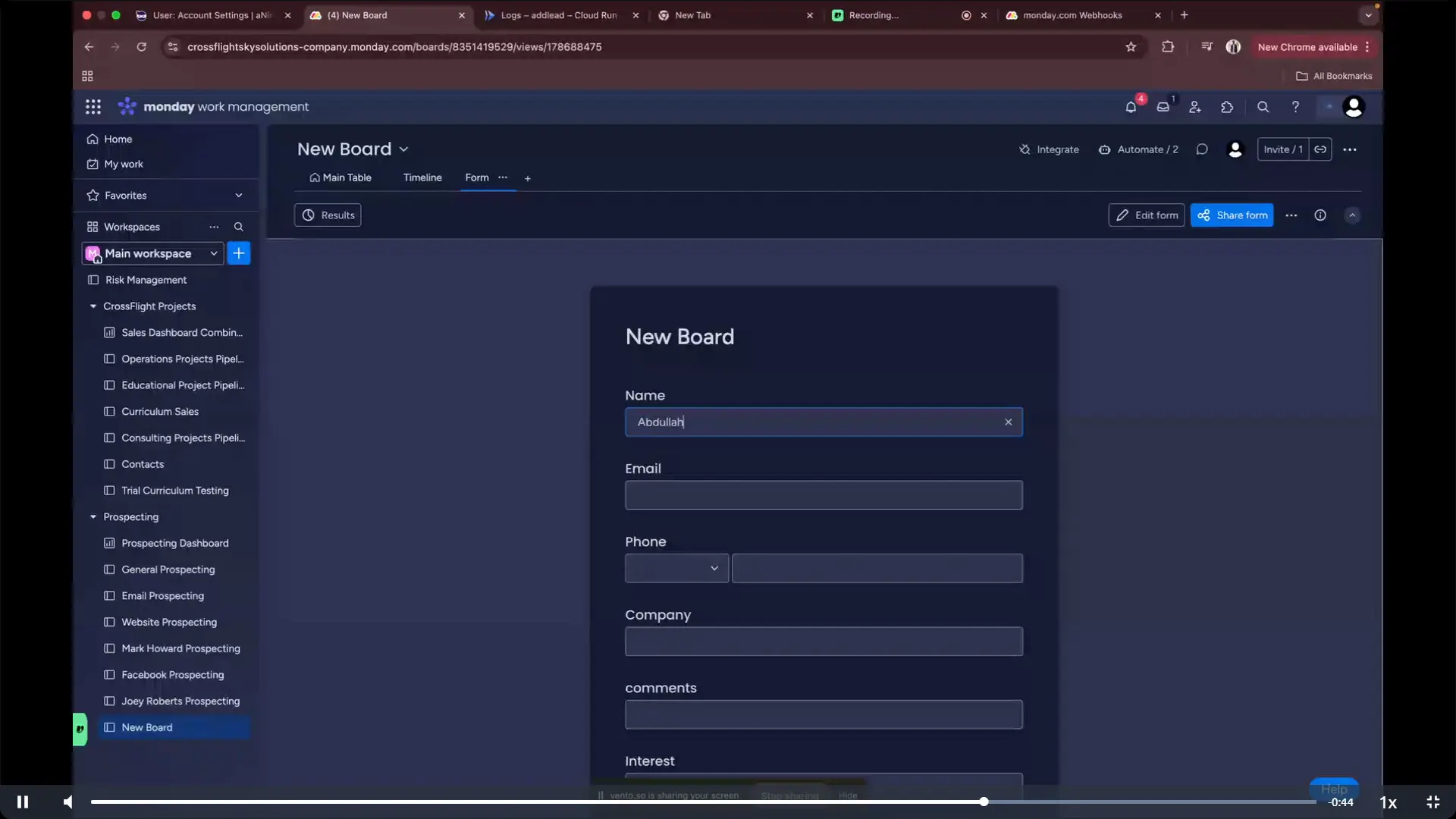
- Submit a new lead through the New Onboard form
- Check aNinja > Leads to see if the lead was successfully created
Troubleshooting
Is Data Not Syncing?
- Verify that the API Key is accurate and still active
- Make sure the correct board is selected in Monday.com
- Try refreshing both Monday.com and aNinja after setup
Incorrect Field Mapping?
- Ensure every field is properly mapped to the corresponding aNinja field
Need Assistance?
If you’re facing any issues or need help, please reach out to [email protected]. We’re here to help!