How Can We Help?
IMAP Email Sync Guide
Follow these steps to integrate your IMAP email account with Nylas for seamless email synchronization.
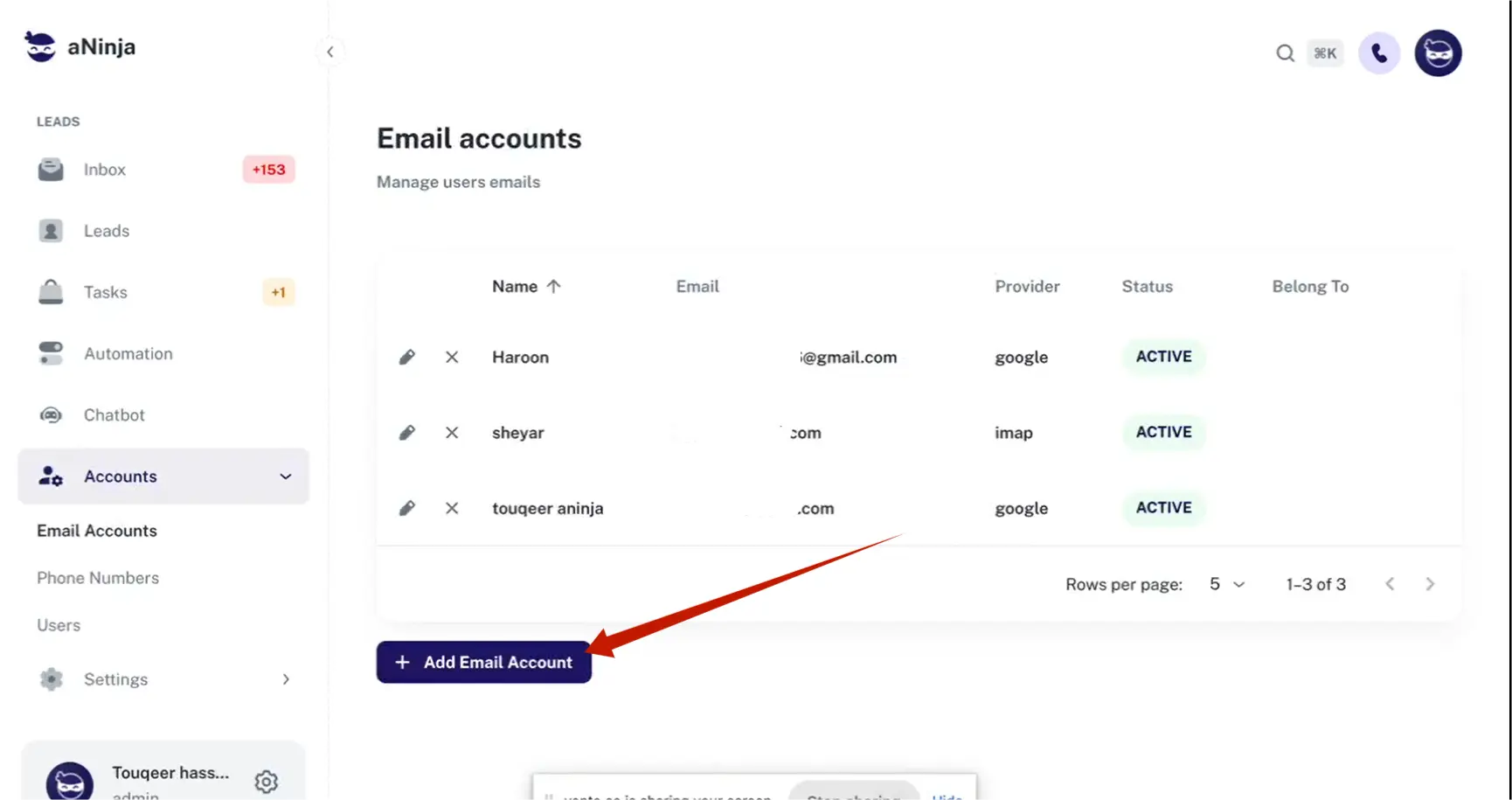
Step 1: Add Email Account
- Go to the Account section in the sidebar.
- Click on Add Email Account.
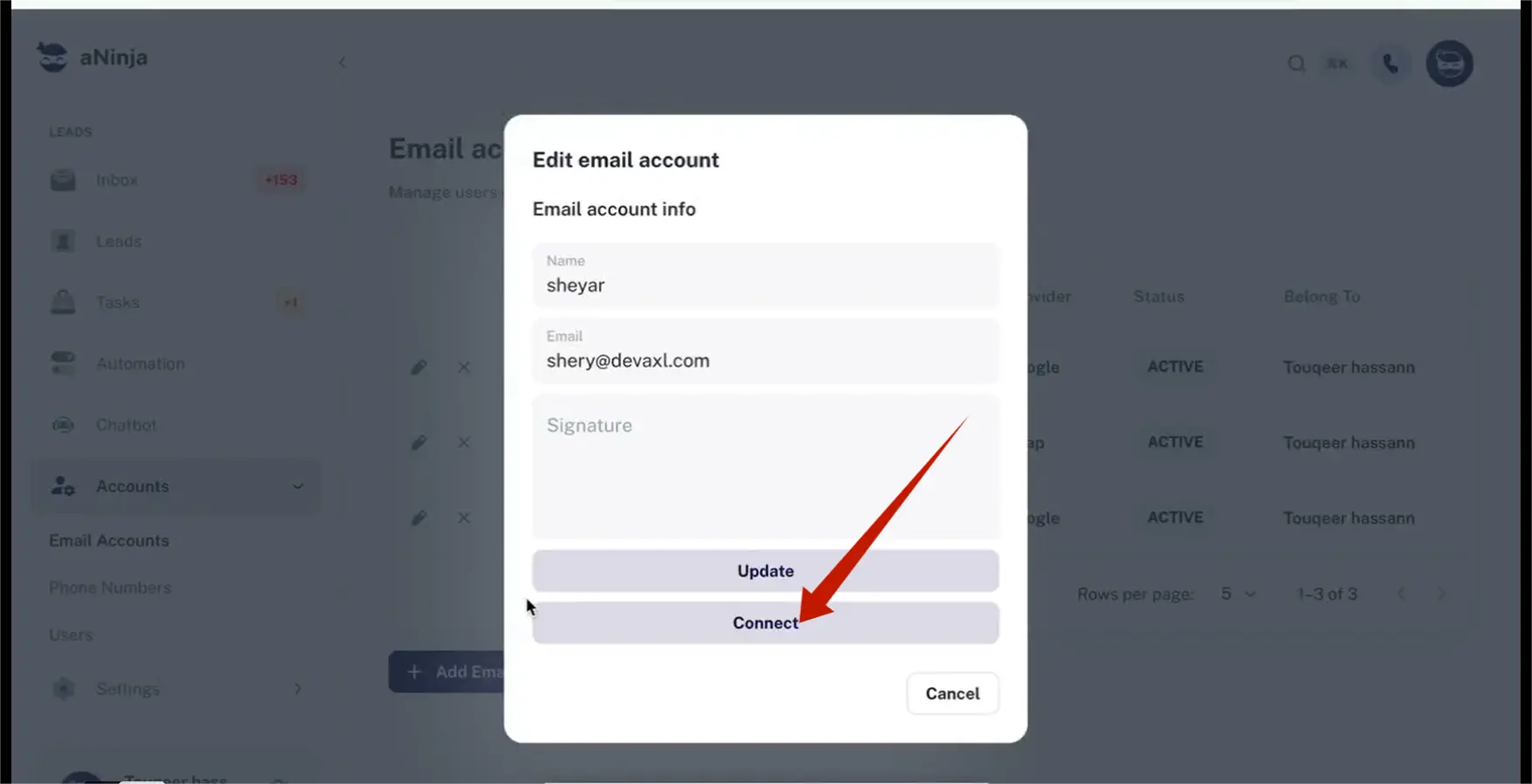
- Enter your Name and Email Address.
- Click on Connect to proceed.
Step 2: Select Provider
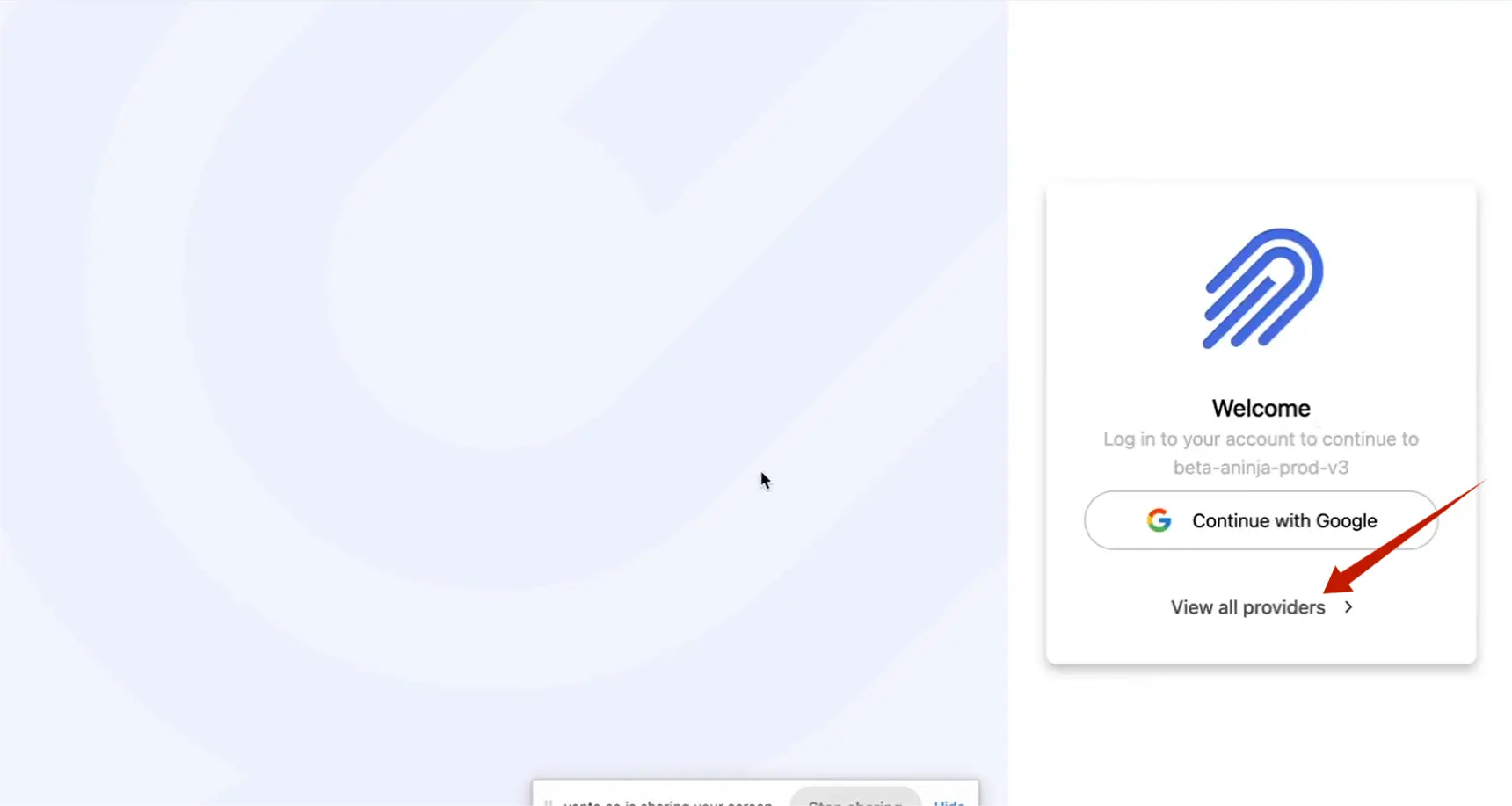
- A pop-up appears for account synchronization (e.g., Gmail).
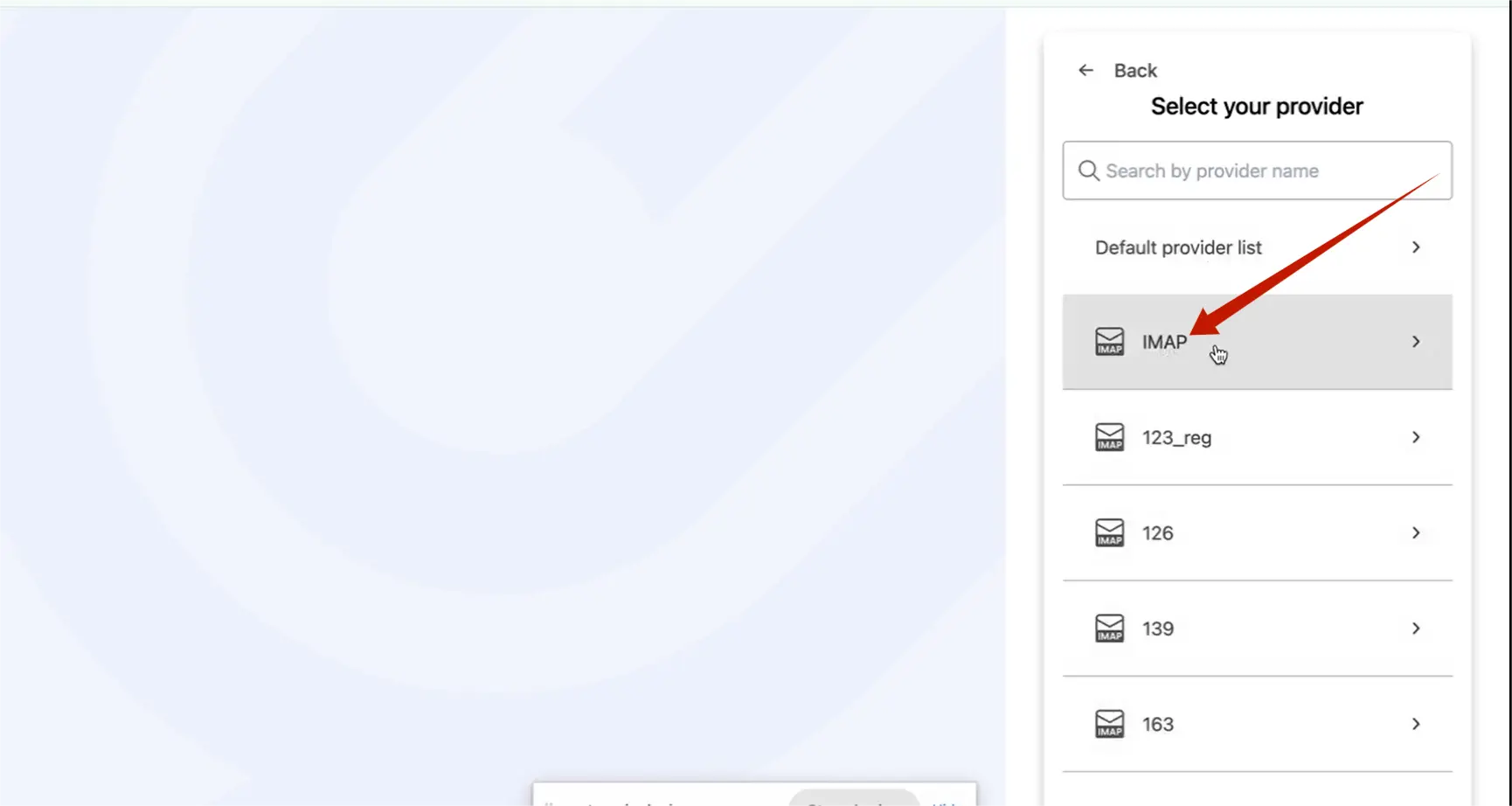
- Click on View all Provider.
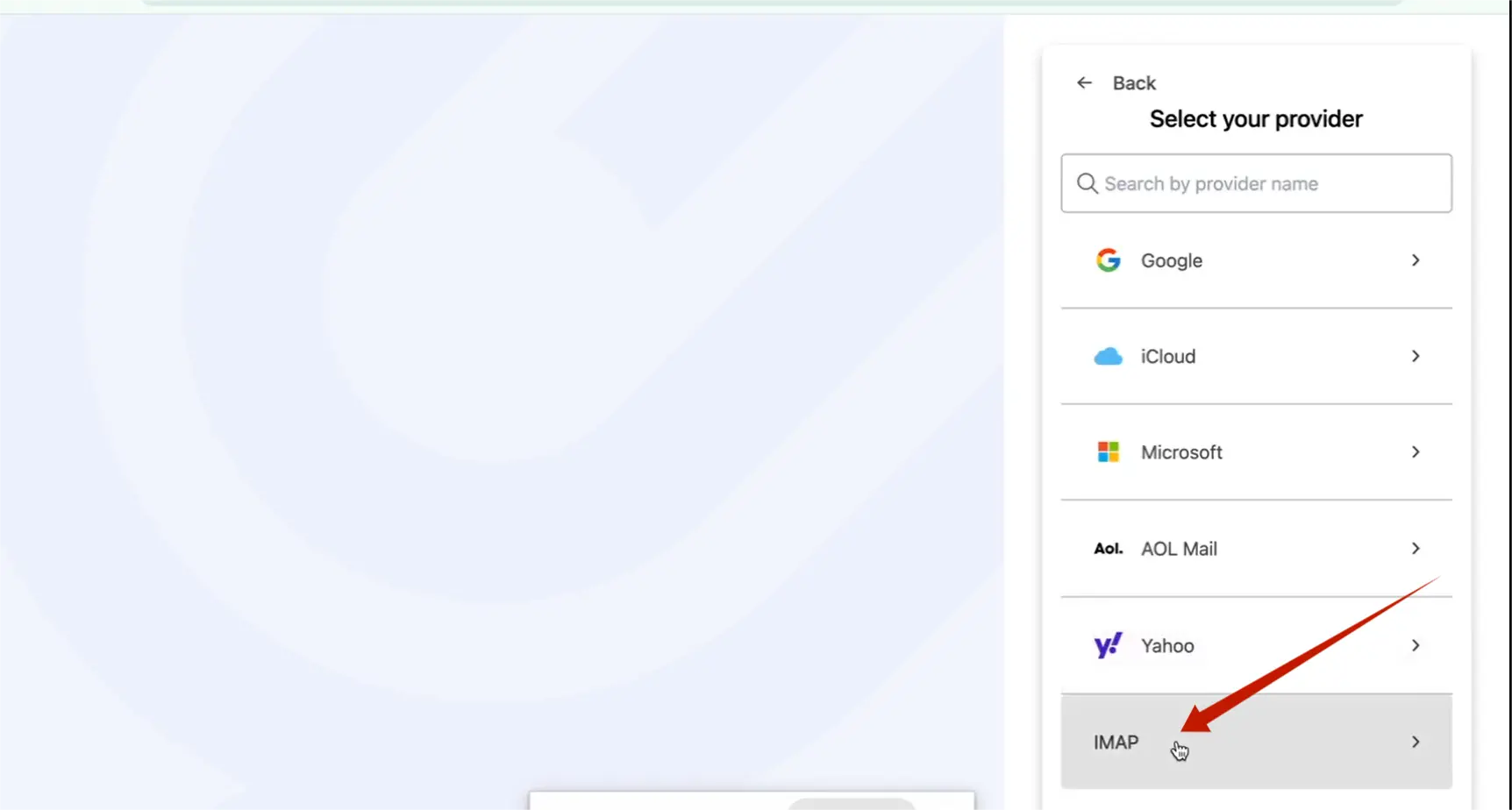
- Select IMAP as your provider.
- Confirm by selecting IMAP again.
Step 3: Fill IMAP and SMTP Form
- Enter your Email Address and Password.
- Provide your email server configuration:
- Username: Your full email address (e.g., [email protected])
- Password: Your email account password
- IMAP Host: imap.yourdomain.com
- IMAP Port: 993 (SSL/TLS)
- SMTP Host: smtp.yourdomain.com
- SMTP Port: 465 (SSL/TLS) or 587 (TLS)
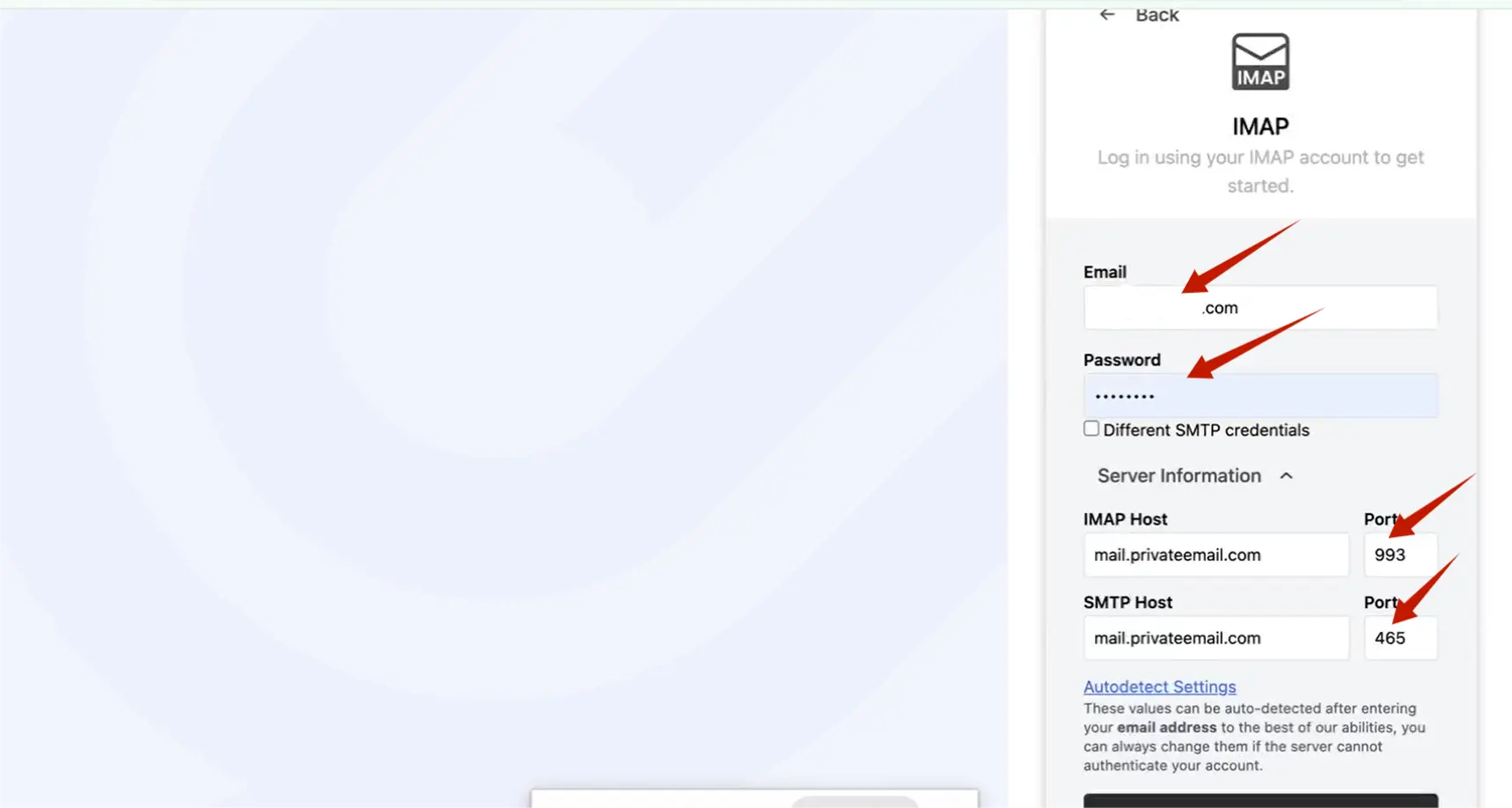
Note: Replace yourdomain.com with your actual email domain.
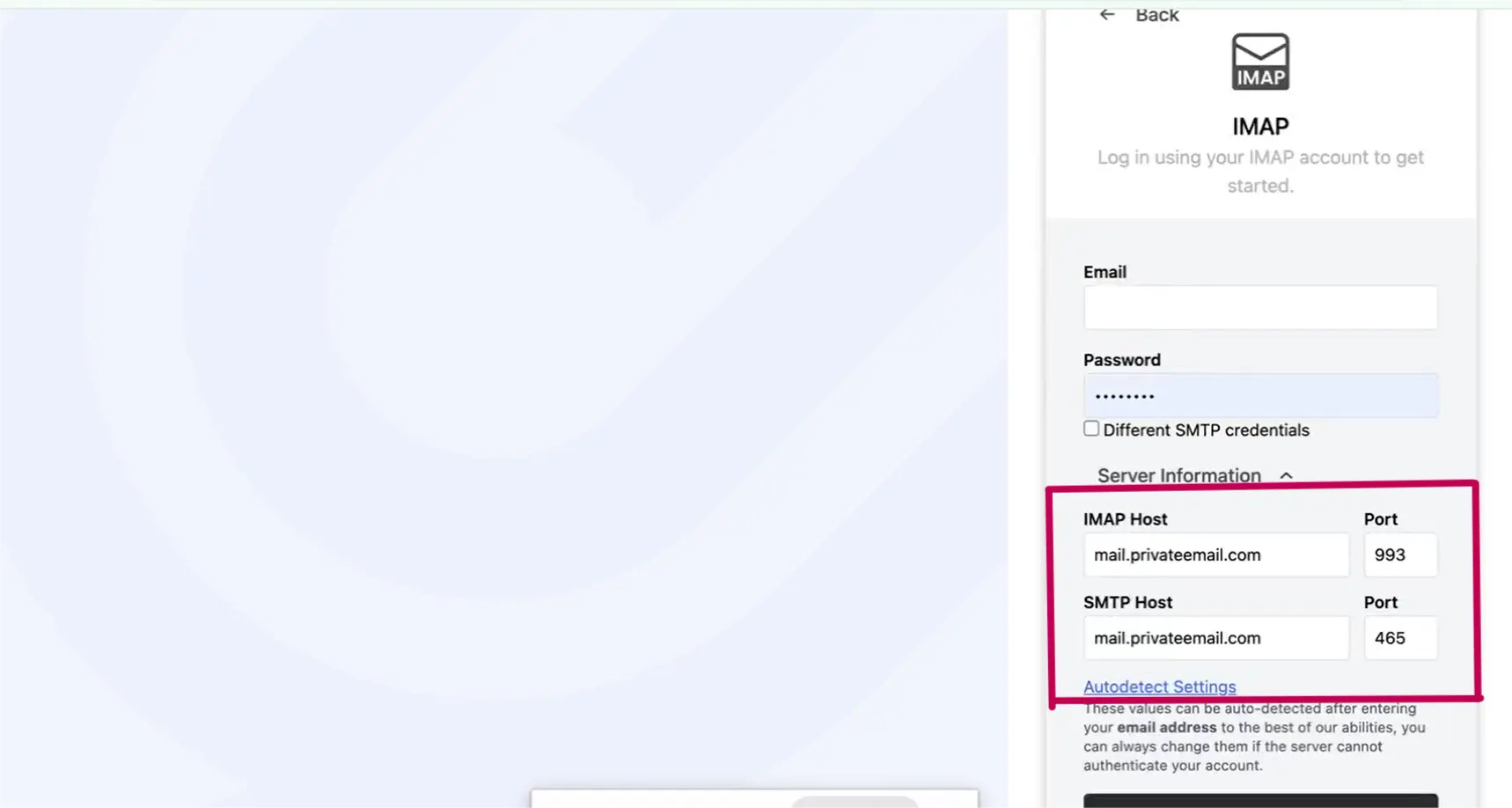
Note: Email server configuration for each provider is unique and different.
Ensure you enter the correct Username, Password, IMAP Host, and SMTP Host to avoid conflicts. Incorrect or missing details will cause improper email synchronization.
Step 4: Connect and Test
- Review your email server credentials carefully.
- Click Next to complete the setup.
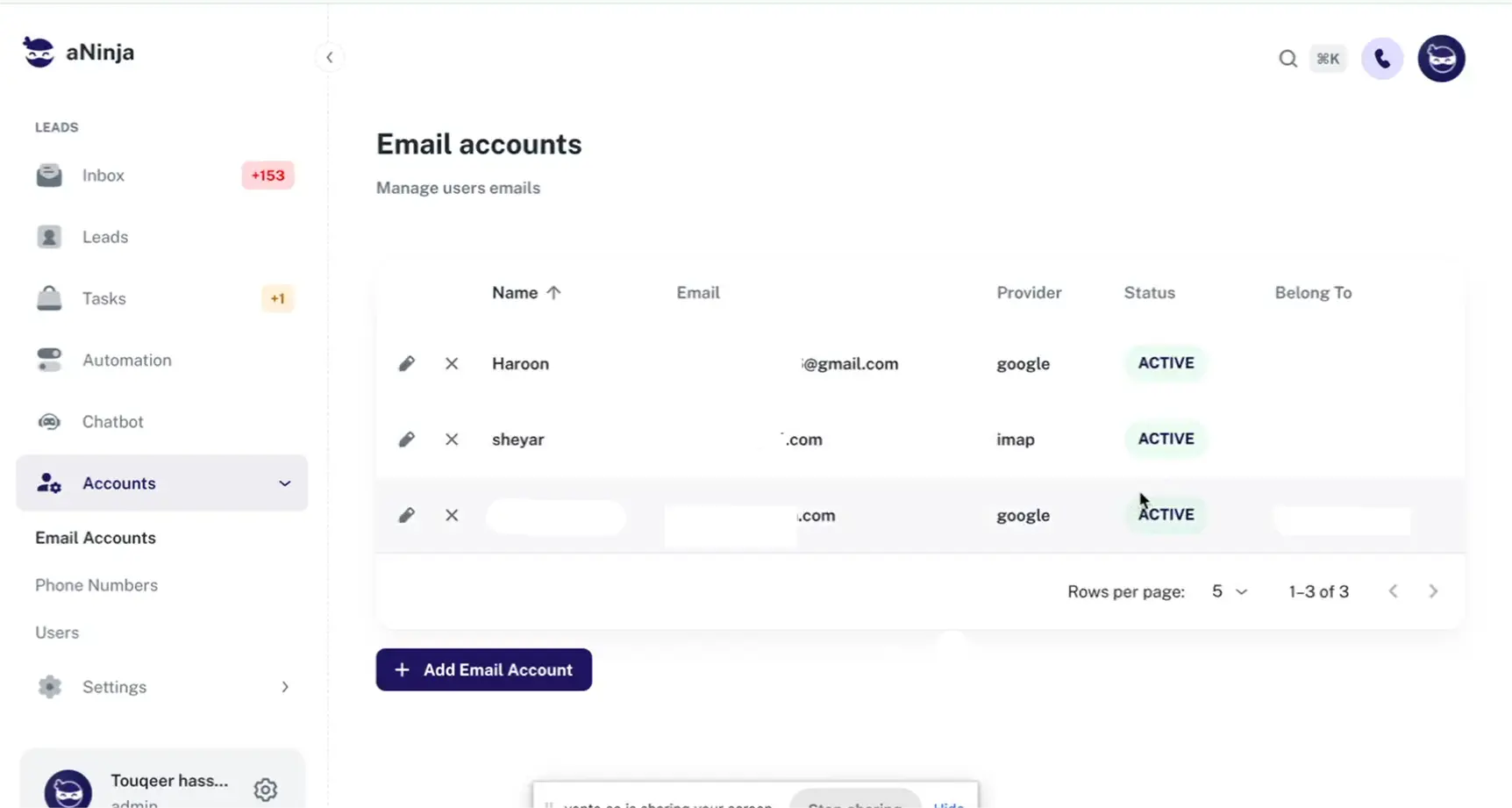
- If details are correct, your email will sync and appear in the Email Account section.
- Verify by checking for incoming and outgoing emails.
Troubleshooting
Data Not Syncing?
- Ensure email account and email server credentials are correct.
- Refresh both platforms after setup.
- Need Help? Contact aNinja Support for assistance.