How Can We Help?
How to use AI Builder
AI Builder
Set up your entire lead-conversion engine — workflow, email sequences, text sequences, and chatbot — in about five minutes.
ANinja CRM · User Guide
Contents
- What AI Builder does
- Before you start
- Starting or resuming a build
- Step-by-step walkthrough
- Getting the best results
- Reviewing and regenerating
- Launching
- After launch
- Troubleshooting
- FAQ
1. What AI Builder does
A brand-new CRM is empty. AI Builder asks about your business, then generates a working configuration you can review, edit, and launch.
| What it builds | How much |
| Workflow pipeline (lead stages) | One pipeline; length follows your answer (short 3–5, medium 6–8, long 9+ stages) |
| Email sequences | 8–12 sequences, 3–5 emails each |
| Text (SMS) sequences | 8–12 sequences, 3–5 messages each |
| Chatbot widget | One chatbot with qualifying questions and guardrails |
A typical build comes out around 8 email sequences and 8 text sequences — roughly 24 emails and 24 text messages, plus a 10-stage pipeline and a configured chatbot.
Nothing is saved to your CRM until you press Launch.
Generating, editing, and regenerating cost you nothing but time. Everything before the final screen is a preview.
2. Before you start
Access
AI Builder appears in the left sidebar for teams on a free trial or an active paid subscription. If your subscription is cancelled, the item is hidden.
Things to check first
- Your profile timezone. Generated sequence steps carry send times (“2 days at 11:00 AM”) interpreted in your timezone. Getting it right up front avoids editing every step later.
Time
About 5 minutes of answering, plus roughly a minute of generation and up to five minutes for the launch itself.
3. Starting or resuming a build
Opening AI Builder shows two choices:
- Continue — picks up where you left off, and tells you the step you stopped on.
- Start new — begins a fresh setup from the first question.
Your progress is saved automatically.
Answers and generated content are stored against your team as you move through the wizard, so you can close the tab and come back later. Progress is shared per team — if two people run it at once, the last save wins. Have one person drive it.
4. Step-by-step walkthrough
Eight stages, shown in the stepper across the top:
Industry → Business → Sales Process → Workflow → Email Sequences → Text Sequences → Chatbot → Review
Step 1 — Industry
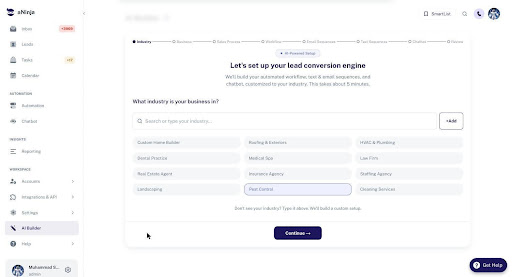
Pick the closest match from the tiles, or type your own into the search box and press +Add. There are 12 built-in industries; a custom one works just as well — the AI builds around whatever you type.
Changing your industry wipes everything.
Selecting a different industry clears the generated services, workflow, sequences, and chatbot so they can be rebuilt from scratch. Settle on the industry before you invest time editing anything downstream.
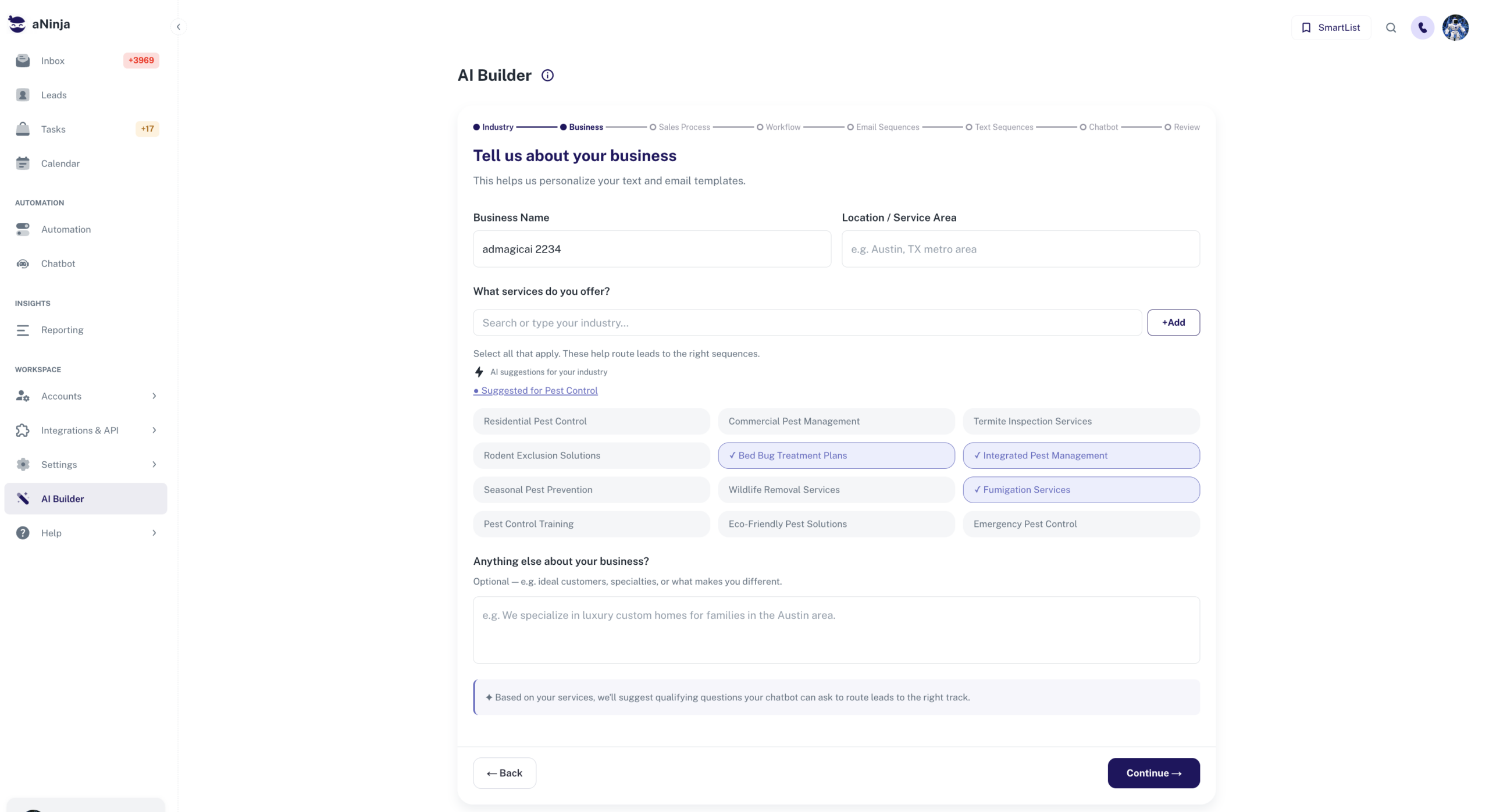
Step 2 — Business
| Field | Required | Notes |
| Business Name | Yes | Pre-filled from your signup company name. Used verbatim inside generated messages. |
| Location / Service Area | No | e.g. “Austin, TX metro area”. |
| Services | Yes — at least one | AI suggests a list for your industry. Click chips to select, or type your own and press
+Add . |
| Anything else about your business? | No | Free text, up to 2000 characters. The single highest-leverage field in the whole wizard. |
Click the “● Suggested for <your industry>” line to select every suggestion at once, then deselect what doesn’t apply.
Step 3 — Sales Process
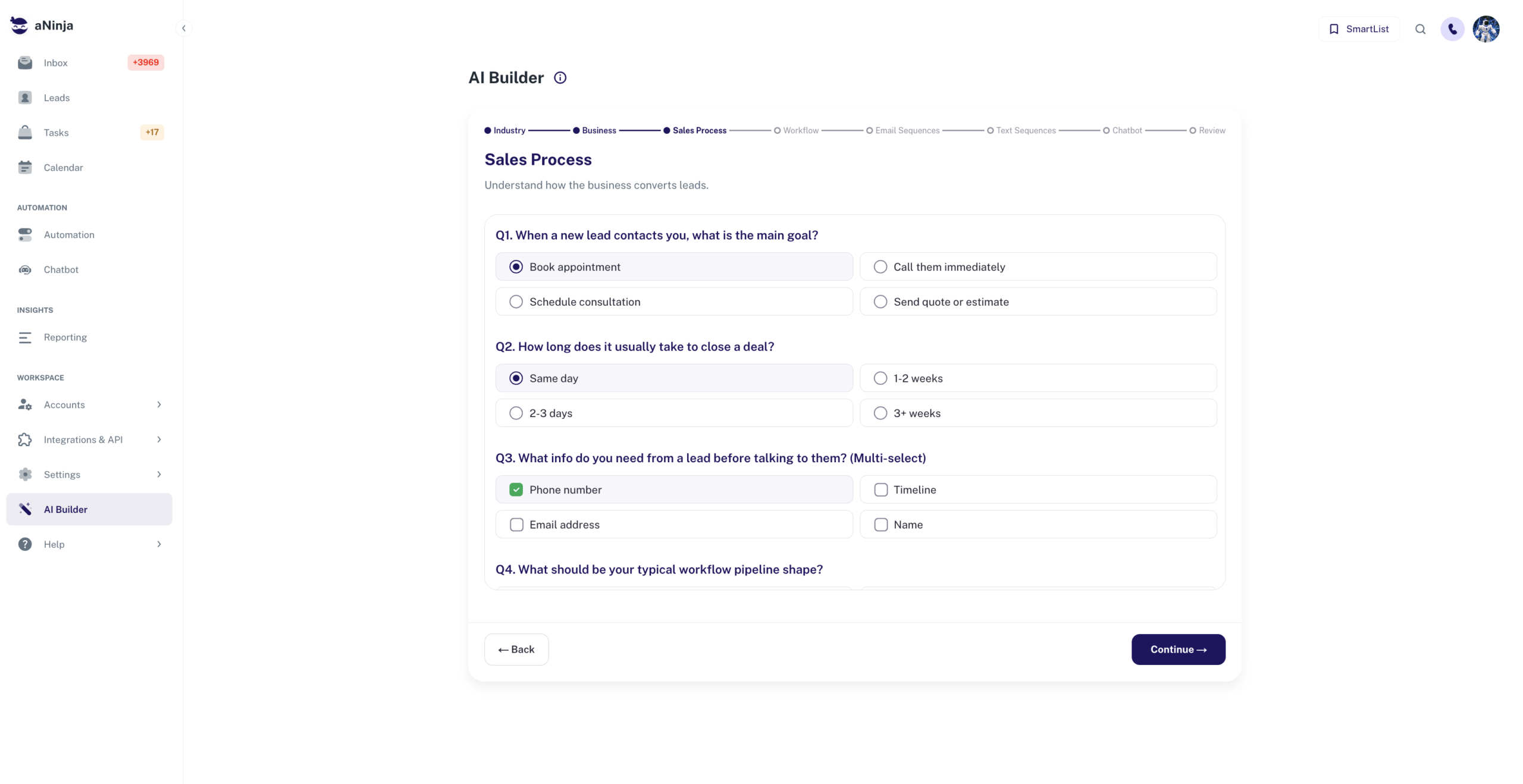
Eight questions about how you convert leads. All eight are required — Continue stays disabled until each has an answer.
| # | Question | What it controls |
| Q1 | Main goal when a new lead contacts you | The call-to-action in every generated message |
| Q2 | How long a deal takes to close | Spacing between sequence steps |
| Q3 | Info you need before talking (multi-select) | What the chatbot asks for |
| Q4 | Workflow pipeline shape | Number of pipeline stages |
| Q5 | Messaging style / tone | Voice of every email and text |
| Q6 | Expected first response time | How aggressive the opening outreach is |
| Q7 | Best days/times to message | Send windows on generated steps |
| Q8 | What happens if a lead doesn’t respond | Whether follow-ups stop, soften, or become long-term nurture |
Step 4 — AI Generation
Automatic, no input needed. The AI writes your workflow, then the email sequences, then the texts, then the chatbot. Leave the tab open.
If you already generated a configuration, this step is skipped — pressing Continue on the Sales Process step takes you straight to Workflow with your existing content intact.
Step 5 — Workflow
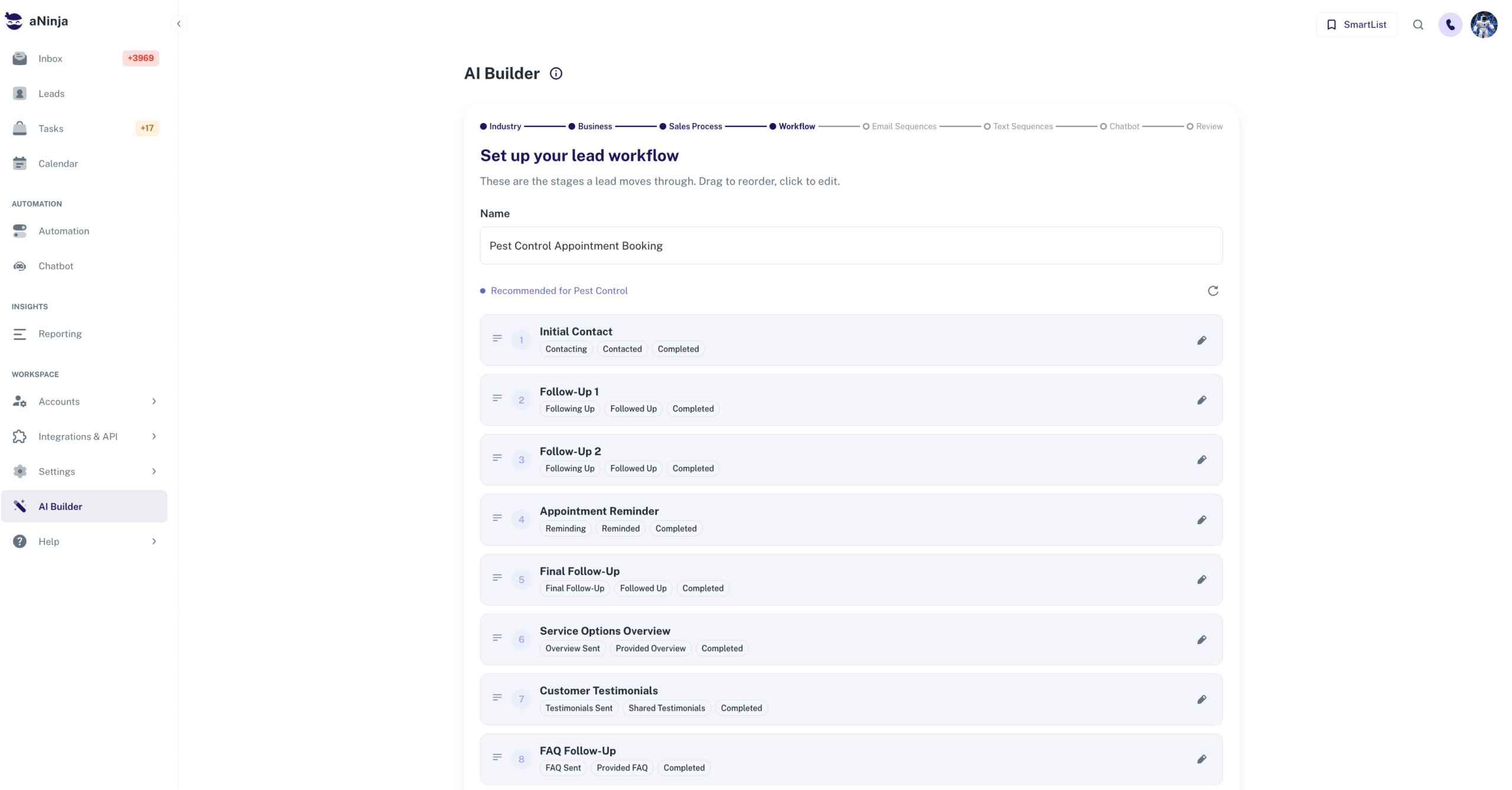
The stages a lead moves through. Each stage carries its own set of statuses (for example Contacting → Contacted → Completed).
- Name — rename the whole workflow at the top
- Drag the handle at the left of a row to reorder stages
- Pencil icon — edit a stage and its statuses
- Add A Step — append a stage of your own
- Refresh icon (top right of the list) — regenerate the whole pipeline
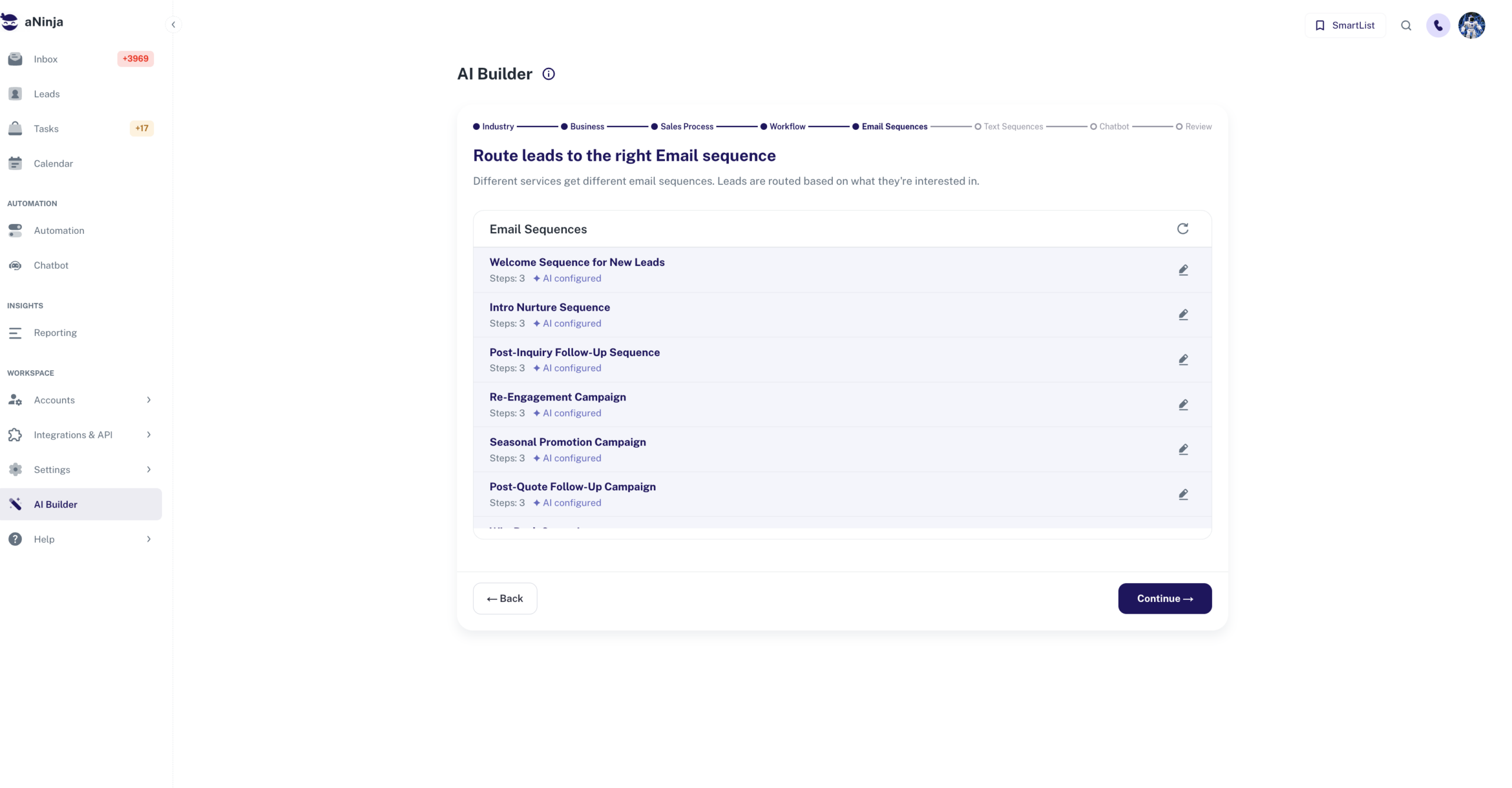
Step 6 — Email Sequences
The list shows each generated sequence with its step count and an “AI configured” marker. Open a sequence with the pencil icon on the right — clicking the name alone doesn’t open it.
Inside a sequence you see every message in order with its subject, body, and timing chip (Immediately, 1 days at 10:00 AM, 2 days at 11:00 AM). Each step has three icons: regenerate that single step, edit it, or delete it.
At the bottom: ✦ Regenerate All Steps, the tone chips, and Approve All & Continue.
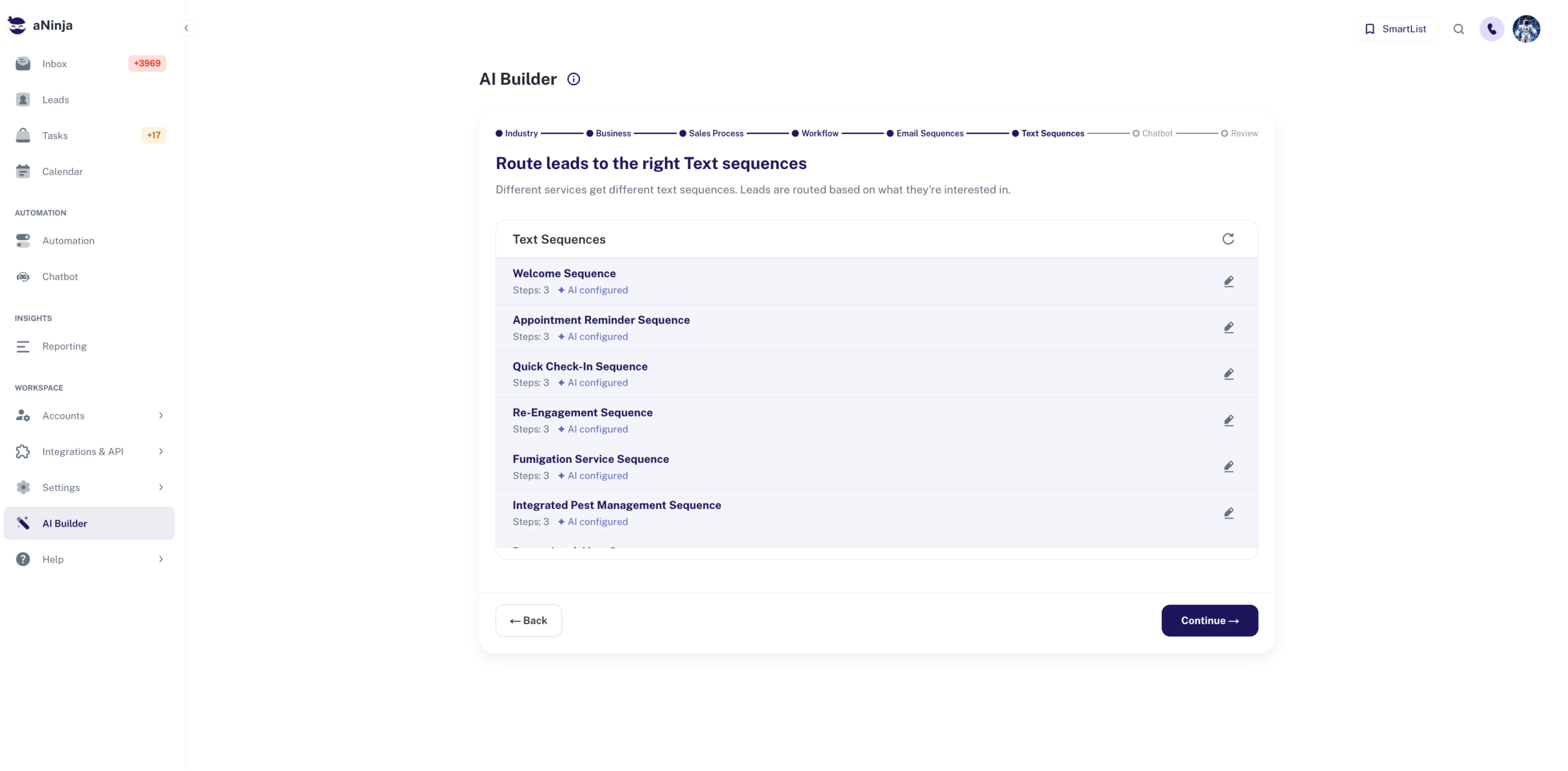
Step 7 — Text Sequences
Same pattern for SMS. Note how sequences are named after the services you selected — this is what “services route leads to the right sequence” means in practice.
Opt-out language is added for you.
Generated text sequences carry the opt-out wording carriers require. Don’t remove it.
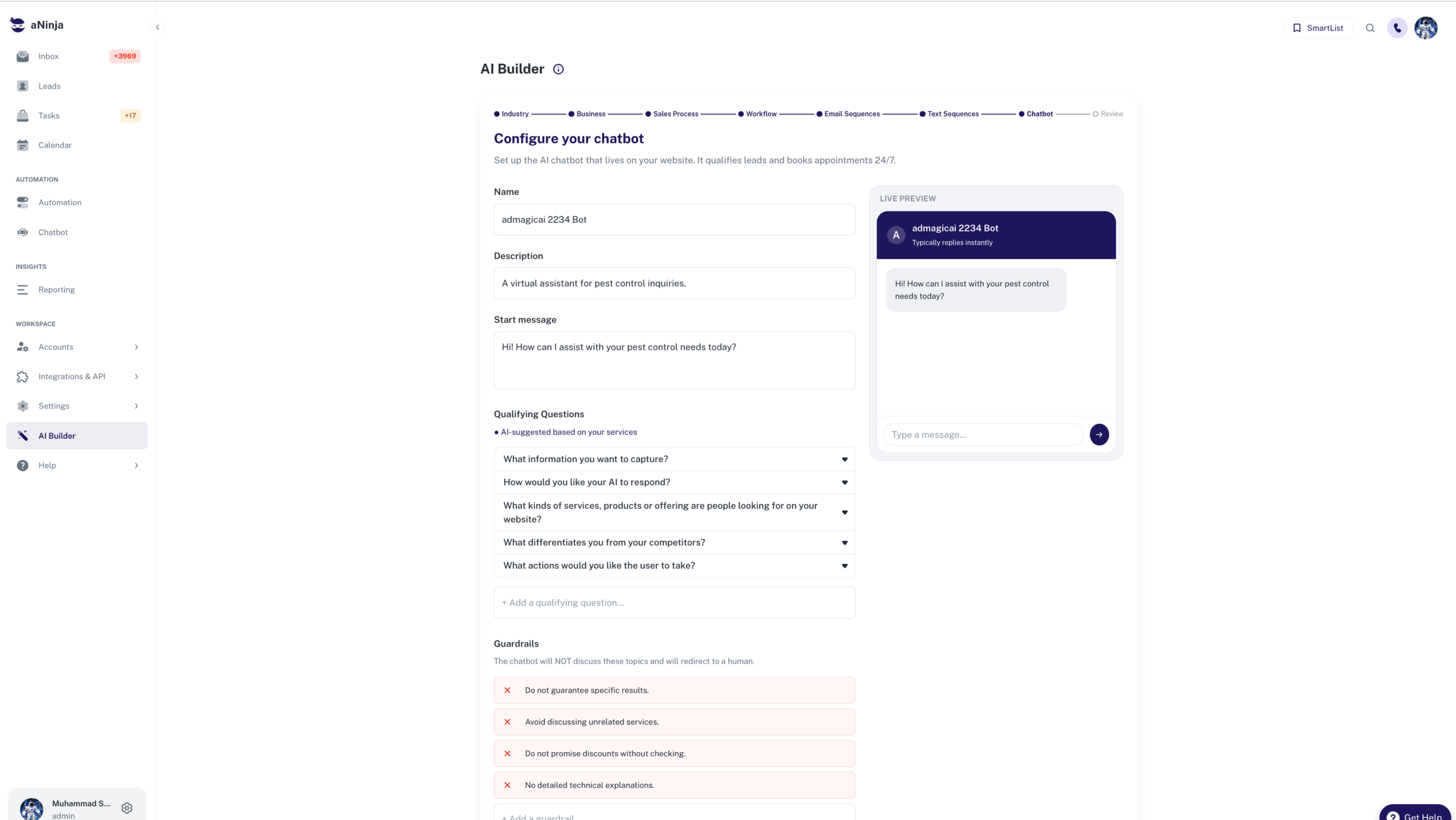
Step 8 — Chatbot
The widget that greets visitors on your site, with a live preview beside the form:
- Name and Description — who the bot says it is
- Start message — the first thing a visitor sees
- Qualifying questions — five AI-suggested questions based on your services; expand any to edit, or add your own
- Guardrails — topics the chatbot will not discuss; it redirects to a human instead
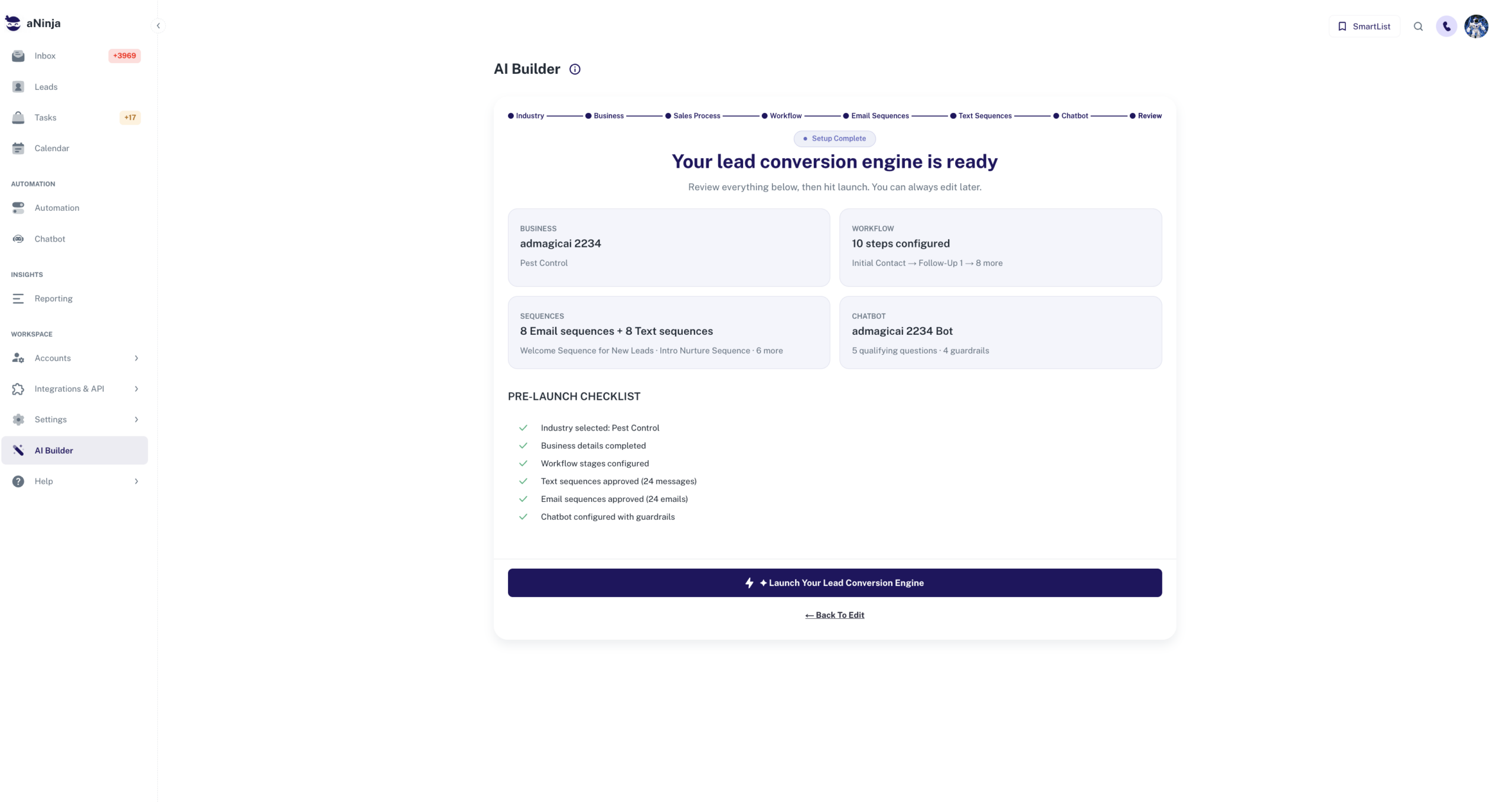
Step 9 — Review
Four summary cards (Business, Workflow, Sequences, Chatbot), a pre-launch checklist with totals, and the launch button.
5. Getting the best results
Write a real paragraph in “Anything else about your business?”
It’s optional, so most people skip it. It is also the only place to say something the fixed questions can’t capture. Compare:
| Weak | Strong |
| “We do pest control.” | “We handle commercial pest control for restaurants and food processing, mostly recurring monthly contracts. Leads usually come after a failed health inspection, so speed and discretion matter more than price. We don’t do one-off residential jobs.” |
The second version changes the urgency, the qualifying questions, and what the sequences promise. You have 2000 characters — use a few hundred.
Be specific with services
Services drive sequence generation directly — you can see it in the generated names. “Roof Repair” and “Storm Damage Repair” produce different sequences; a single generic “Roofing” produces one bland set. Select every service you actually sell, and deselect suggestions you don’t — a service you never sell still gets sequences written for it.
Answer Q2 and Q8 honestly
These two shape follow-up cadence more than anything else. If deals really take 3+ weeks, answering “Same day” produces a sequence that burns through every touch in a few days and then goes silent for the rest of your sales cycle.
Match tone to your buyer, not your taste
“Friendly conversational” is the safe default for home services and retail. Medical, legal, and financial buyers respond better to “Premium / formal” or “Clinical / compliance-forward”. “Ultra concise / direct” suits SMS-heavy, high-volume operations.
Read at least two sequences end to end
Don’t approve from the summary card alone. Open one email sequence and one text sequence and read every step. You’ll catch a wrong business name, a service you don’t offer, or a claim you can’t back — and you’ll learn what the tone chips actually do.
Check the timing chips, not just the copy
Each step shows when it fires. Read the chips down the sequence and ask whether that rhythm matches how you actually sell. Fixing cadence here is faster than fixing it in Automation after launch.
Give the chatbot guardrails you’d actually enforce
The generated guardrails are generic liability cover. Add the ones specific to you — pricing you won’t quote unattended, services you don’t offer, promises you can’t make. Guardrails cost nothing and prevent the bot from creating obligations you have to honour.
Lock the industry before you edit
Editing sequences and then changing your industry throws the edits away. Industry first, edits second.
6. Reviewing and regenerating
Every generated section has regeneration controls, so you rarely need to start over.
| Control | Where | What it does |
| Regenerate icon on a step | Sequence detail | Rewrites that one message |
| ✦ Regenerate All Steps | Sequence detail | Rewrites every step in that sequence |
| Tone chips | Sequence detail | Rewrites with a tone shift:
More Formal , Shorter , Add Urgency , More Casual |
| Refresh icon on a list | Email / Text sequence lists | Rebuilds the whole set |
| Refresh icon on workflow | Workflow step | Rebuilds the pipeline stages |
| Manual editing | Everywhere | Type over anything the AI wrote |
Regenerate beats rewriting.
If a sequence is close but too stiff, press
More Casual
rather than editing five messages by hand. If it’s wrong on substance — wrong service, wrong claim — edit it; tone chips won’t fix wrong facts.
Regeneration replaces manual edits in whatever it covers. Regenerate first, hand-edit second.
7. Launching
On the Review screen, press ✦ Launch Your Lead Conversion Engine. A progress screen walks through four stages:
- Creating your workflow
- Setting up email sequences
- Setting up text sequences
- Launching your chatbot
This is the only moment anything is written to your CRM. It can take up to five minutes, because it creates every sequence, template, trigger, and the widget in one pass.
Don’t close the tab during launch.
Use
← Back To Edit
before launching, not during. If it fails, a
Try again
button appears.
8. After launch
Generated items become ordinary CRM records — nothing is locked or read-only:
| What | Where to find it |
| Email & text sequences | Automation |
| Templates | Automation → Templates |
| Workflow pipeline | Settings → Workflows |
| Chatbot widget | Chatbot |
Edit, rename, disable, or delete any of them exactly as if you had built them by hand.
9. Troubleshooting
| Message | Meaning | Fix |
| Generation took too long. Please try again. | The AI didn’t finish in time | Retry — it usually succeeds on the second attempt. |
| We could not generate your setup. Please try again. | Generation failed | Retry. If it repeats, shorten the free-text business description. |
| Setup took too long. Please try again. | Launch exceeded its time limit | Press
Try again . Check Automation first in case part of it was created. |
| User API key is required to create a chatbot | No API key on your account | Add an API key in account settings, then launch again. |
| No “AI Builder” in the sidebar | Team not eligible | Requires an active trial or paid subscription. |
| Continue is greyed out | A required answer is missing | Industry: pick one. Business: name + at least one service. Sales Process: all eight questions. |
| Clicking a sequence name does nothing | Not the control that opens it | Use the pencil icon on the right of the row. |
10. FAQ
Can I run AI Builder more than once?
Yes. Choose Start new for a fresh configuration. It does not delete what you launched previously, so you may end up with duplicate sequences — clean up the old set first if you don’t want both.
Will it message my leads automatically after launch?
Sequences are created, not started. Leads enter them through your triggers and workflow, the same as any hand-built sequence.
What are the {{Contact.firstname}} bits in the messages?
Merge fields. They’re replaced with the lead’s real details when the message sends. Leave them in place; you can add more from the message editor.
Can I use a custom industry?
Yes. Type it into the search box on the first step and press +Add. Custom industries get the same treatment as built-in ones..
Does regenerating cost anything?
No charge to you. Regenerate as often as you need before launching.
Can two people work on it at once?
Progress is stored per acccount, so a second person editing at the same time overwrites the first. Have one person run it.