How Can We Help?
How to Set Up A2P 10DLC SMS Registration in aNinja (Twilio Integration)
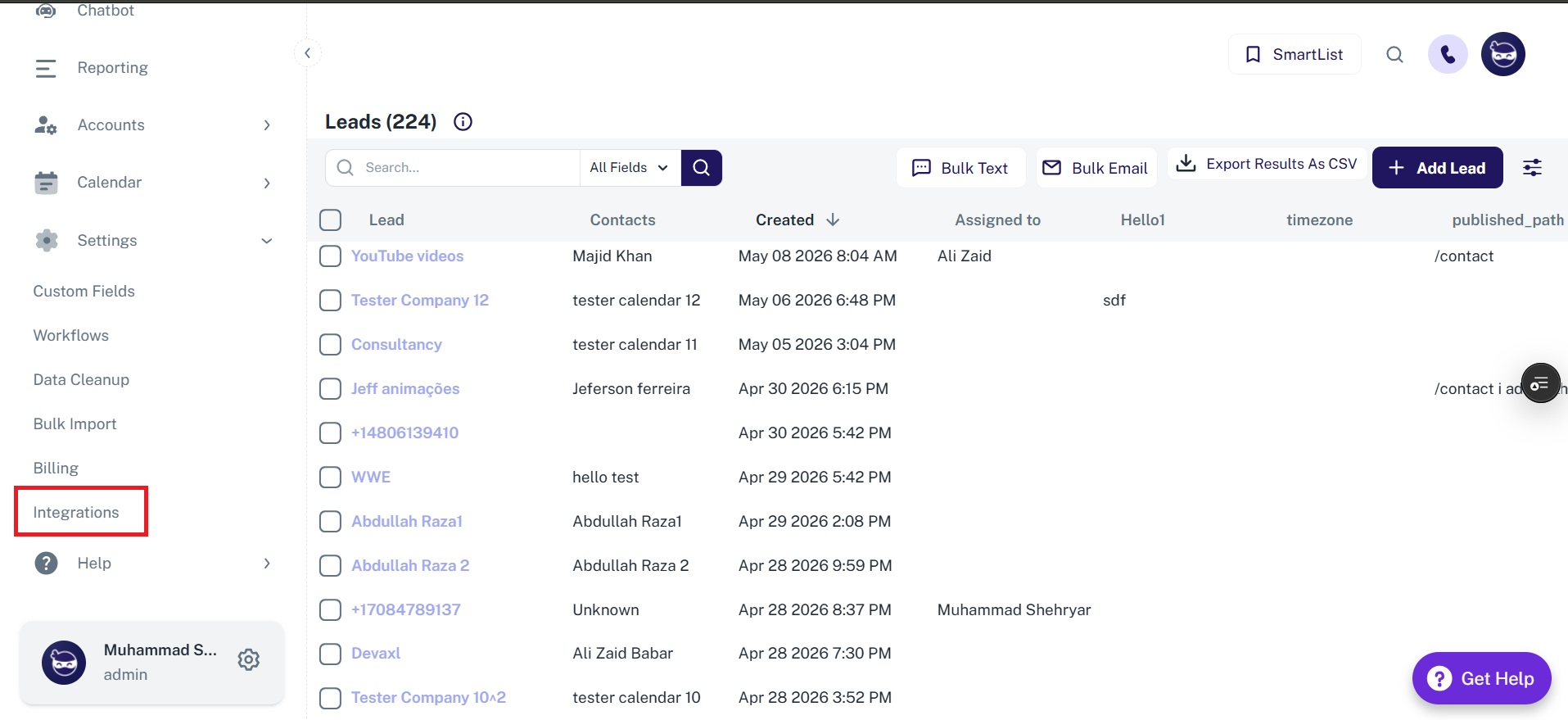
Step 1: Navigate to the A2P 10DLC Registration in aNinja
- Log in to your aNinja account.
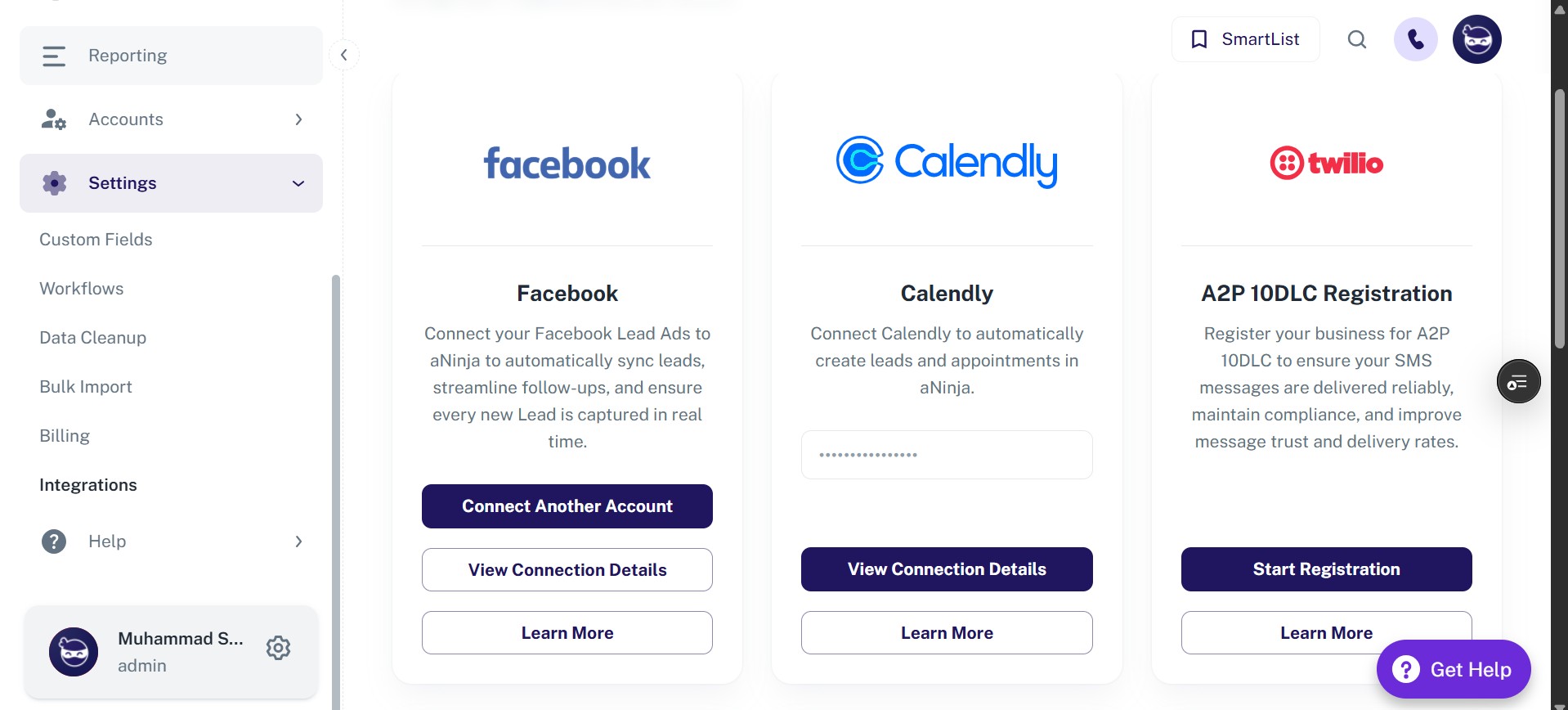
- Navigate to Settings → Integrations.
- Locate the A2P 10DLC Registration card.
- Click Start Registration to begin the setup wizard.
Step 2: Enter Your Business Information
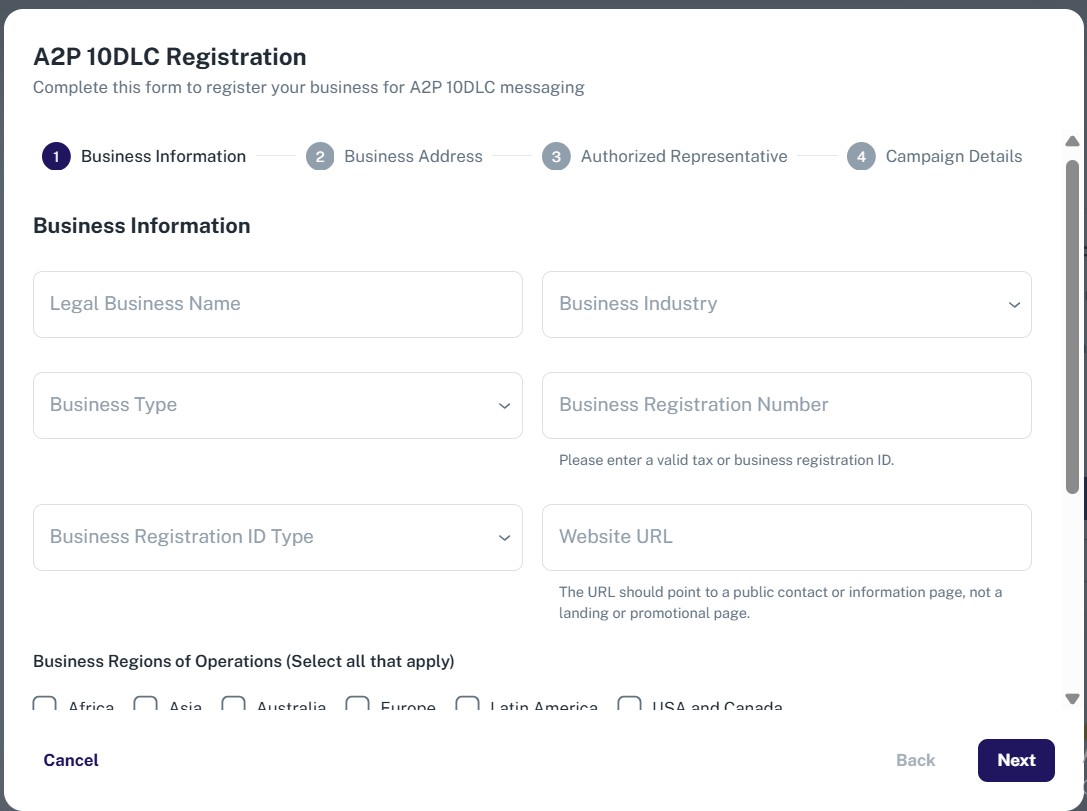
- Enter your Legal Business Name as it appears on official documents.
- Select your Business Industry from the dropdown (e.g., Technology, Healthcare, Real Estate).
- Select your Business Type (e.g., LLC, Corporation, Sole Proprietorship).
- Enter your Business Registration Number and select the corresponding Registration ID Type (e.g., EIN, DUNS, VAT).
- Enter your Website URL.
- Select your Business Regions of Operation (e.g., USA and Canada).
- Enter your Contact Email and select your Company Type (Private, Public, Non-Profit, or Government).
- Click Next to proceed.
Step 3: Enter Your Business Address
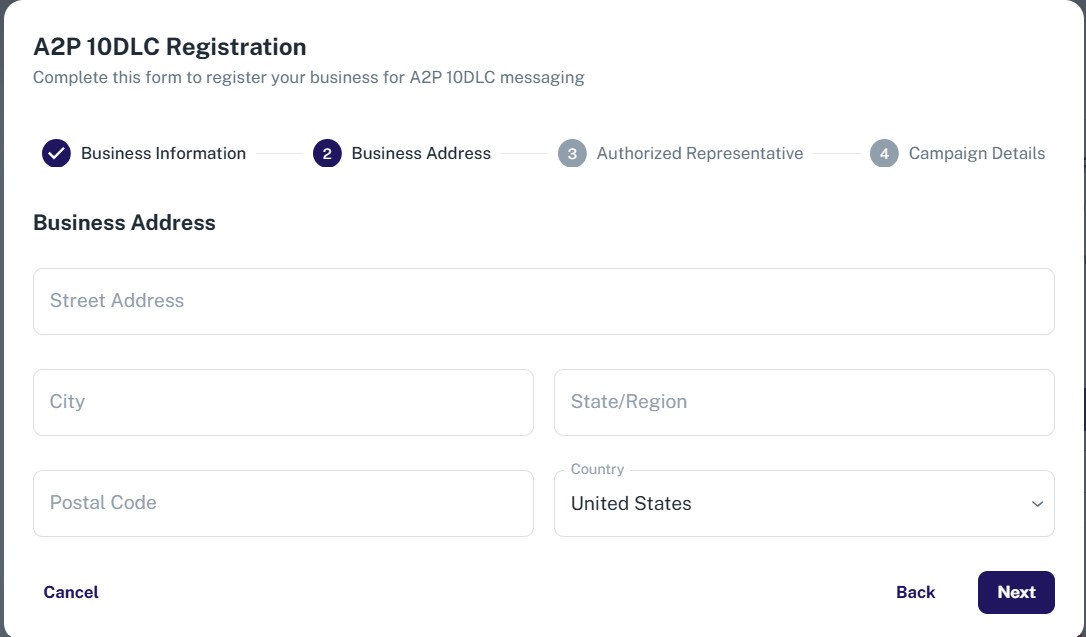
- Enter your Street Address.
- Enter your City, State/Region, and Postal Code.
- Select your Country from the dropdown.
- Click Next to proceed.
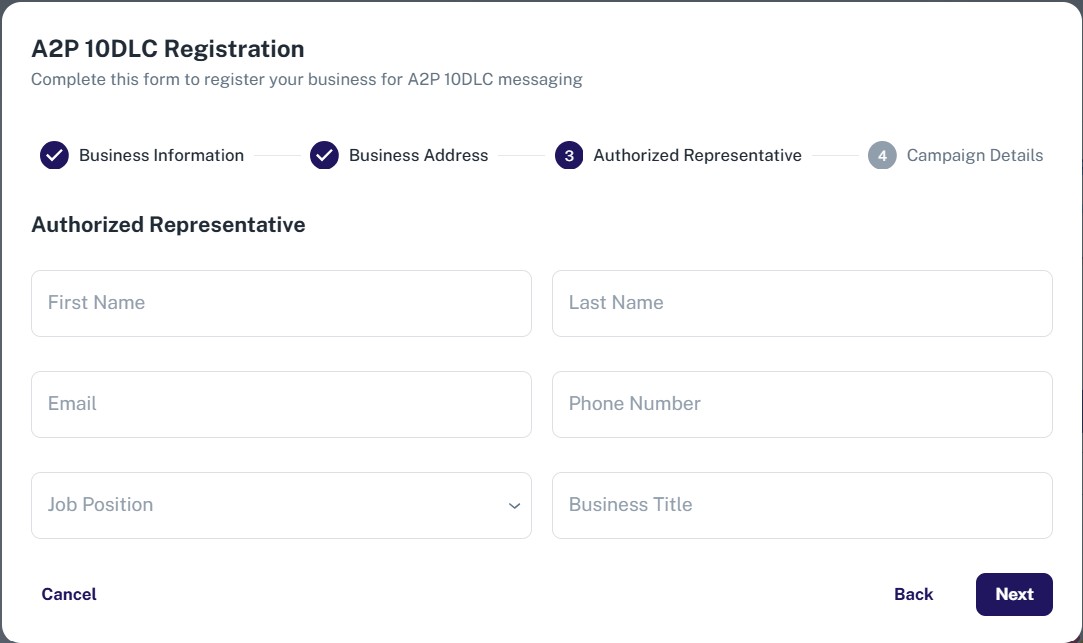
Step 4: Add Your Authorized Representative
- Enter the First Name and Last Name of the authorized representative.
- Enter their Email and Phone Number.
- Select their Job Position from the dropdown (e.g., CEO, Director, VP).
- Enter their Business Title.
- Click Next to proceed.
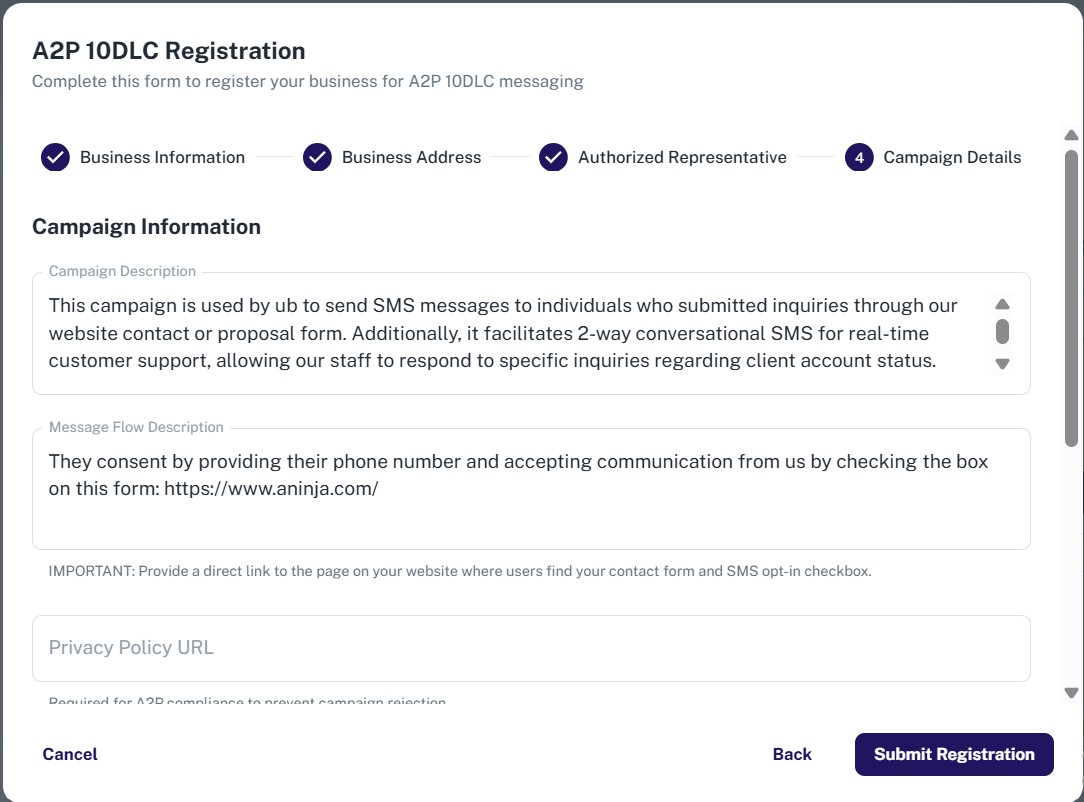
Step 5: Complete Your Campaign Information
- Review the auto-filled Campaign Description and Message Flow Description — edit them if needed to accurately describe how you use SMS.
- Enter your Privacy Policy URL and Terms and Conditions URL (required for compliance).
- Review the pre-populated Message Samples — these are example SMS messages that will be sent to your contacts.
- Click Submit to send your registration to Twilio for review.
Step 6: Monitor Your Registration Status
- After submitting, return to Settings → Integrations and click View Status on the A2P 10DLC card.
- Your registration goes through three approval phases:
- Customer Profile — Business identity validation.
- Brand Registration — Brand identity verification with carriers.
- Campaign Use Case — Review of your SMS messaging content.
- Each phase will show a status of Pending, Approved, or Rejected.
- If any phase is rejected, click Fix & Resubmit to correct the information and resubmit.
- Once all three phases show Approved, your Twilio SMS integration is fully active.