How Can We Help?
How to Automate Workflows with the aNinja & n8n Integration
This guide walks you through integrating your aNinja account with n8n, a powerful workflow automation tool. By connecting aNinja to n8n, you can automate tasks such as creating leads from form submissions, updating contacts from spreadsheets, or synchronizing data between aNinja and other applications.
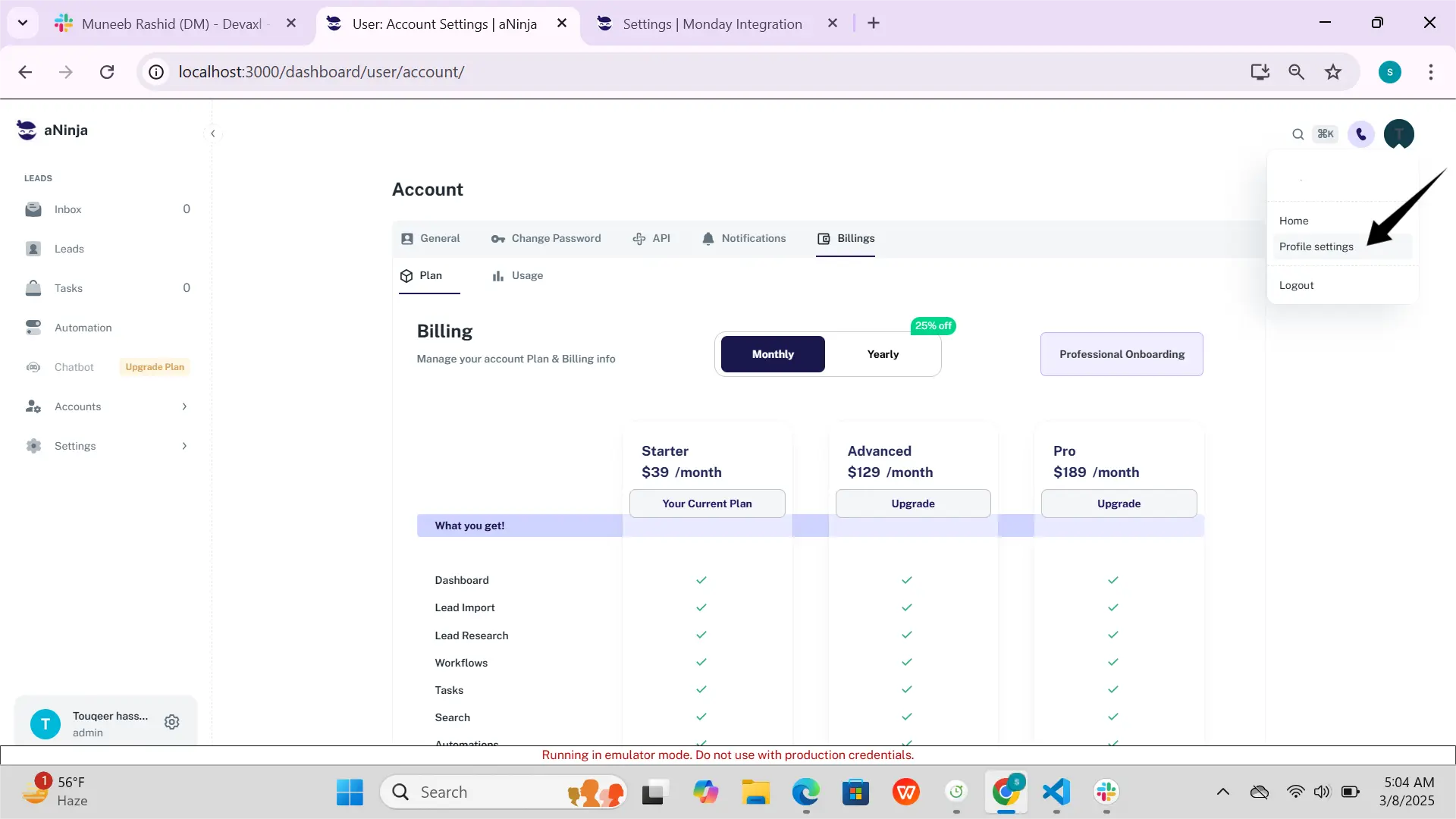
1. Setting Up Your aNinja Credentials in n8n
Before building any workflows, you need to authenticate n8n with your aNinja API key. This is done by creating a new credential in n8n:
- In your n8n workflow, add a new node (e.g., HTTP Request).
- In the Credentials field, click Create New.
- Select Header Auth as the credential type.
- Credential Name: Enter a descriptive name (e.g., aNinja API Key).
- Header Name: Enter
Authorization. - Header Value: Enter
Bearer [your_api_key], replacing[your_api_key]with the key from aNinja Settings → API & Integrations. - Click Save.
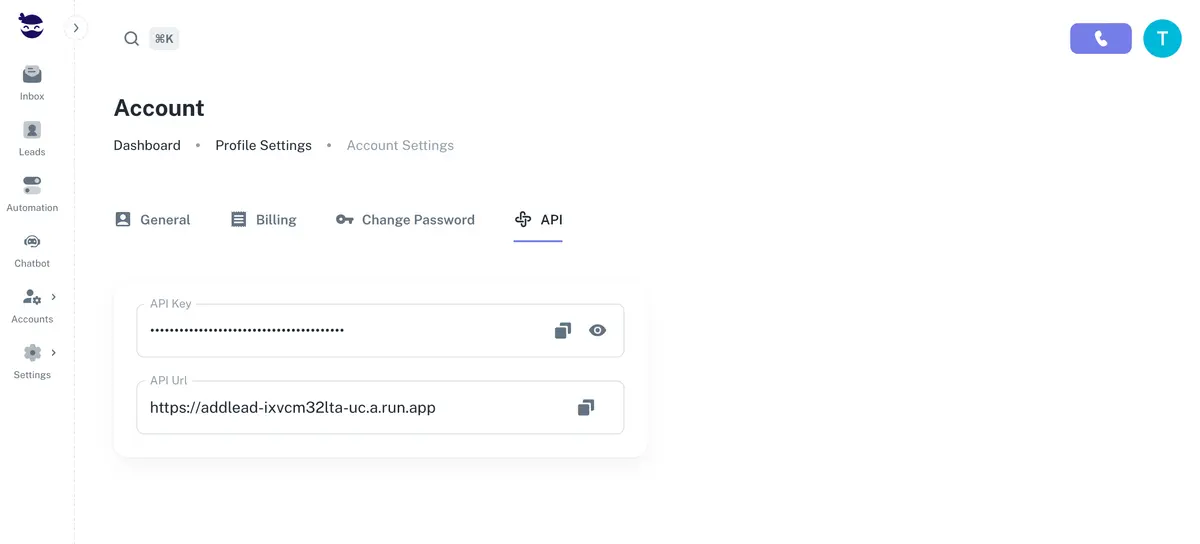
Your n8n workflows can now securely connect to aNinja.
2. Workflow Example: Creating a New Lead in aNinja from a Webhook
This example demonstrates how to automatically create a lead in aNinja whenever a webhook is triggered by an external form or application.
Step 1: Set Up the Trigger Node
- Start your workflow with a Webhook trigger node. This node listens for incoming data (e.g., form submissions).
- Set the Webhook URL and click Listen for Test Event to capture a sample data payload.
Step 2: Configure the HTTP Request Node
- Add a new HTTP Request node and connect it to your Webhook node.
- Credentials: Select the aNinja API Key credential you created earlier.
- Request Method:
POST - URL:
https://api.aninja.com/v1/leads - Headers:
- Name:
Content-Type - Value:
application/json
- Name:
- Body Parameters:
- Set the Body Content Type to JSON.
- Construct the JSON body using n8n’s expression editor to map the data from your webhook trigger.
Example JSON body:
{
  "name": "{{$json.name}}",
  "email": "{{$json.email}}",
  "phone": "{{$json.phone}}",
  "source": "n8n Webhook"
}
Here, {{$json.name}} dynamically pulls the name field from the webhook payload.
Step 3: Save and Activate
- Click Execute Workflow to test.
- If successful, you should see a
201 Createdresponse from the aNinja API. - Save your workflow and toggle the Active switch to enable it permanently.
3. Field Mapping and Best Practices
- Data Mapping: Ensure that data from your n8n workflow maps to the correct fields in the aNinja API. The
nameandemailfields are required for creating a lead, but you can also include other standard or custom fields. - Error Handling: Use n8n’s error-handling features (e.g., an If node to check for a
200or201status) to manage failed API calls without stopping the workflow. - API Reference: For a complete list of available endpoints and fields, see the aNinja API Reference.