How Can We Help?
Email account sync statuses
Your synced email with aNinja can have different statuses indicating the sync state. This article shows you how to check the status of your email account and what each status means.
Where to check the Email account sync statuses in aNinja
In your aNinja account:
- Click on Accounts from the left sidebar.
- From the dropdown, select Email Accounts.
- A table appears listing your email accounts along with their status.
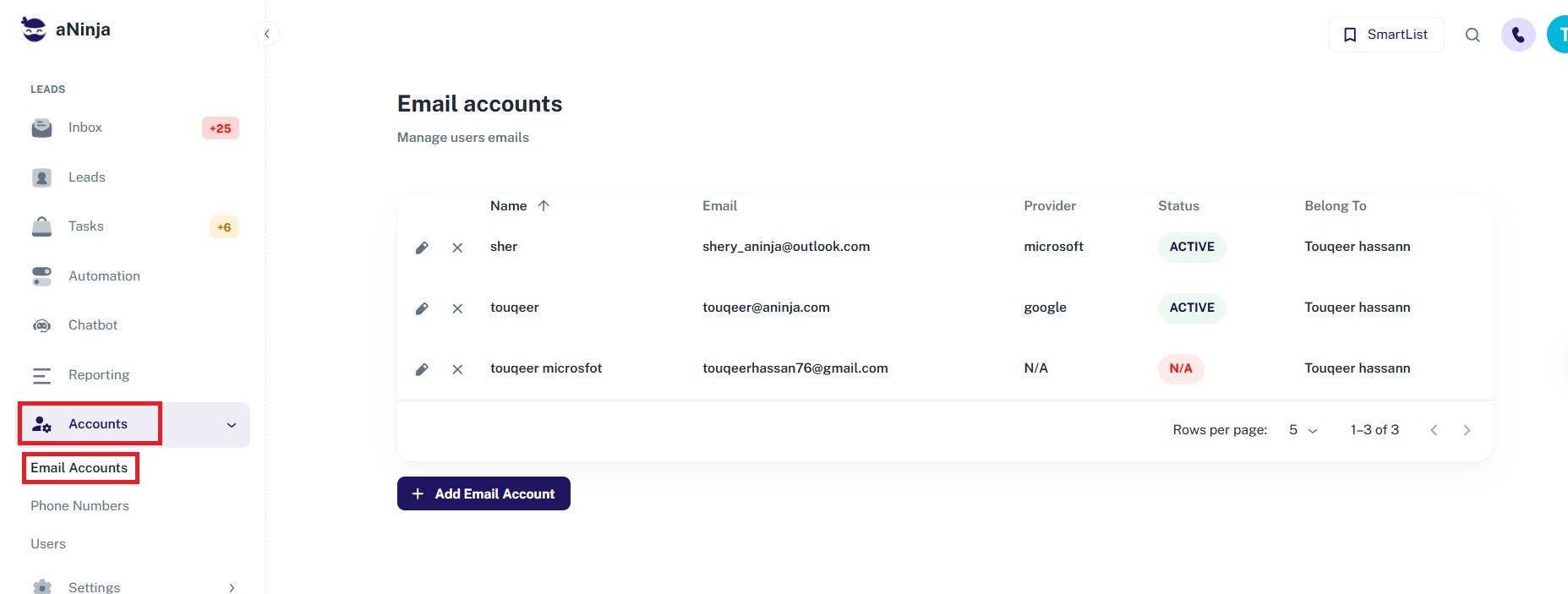
Email Account Statuses
Each email account listed in the table will have one of the following statuses:
- Active – Your email is connected and syncing correctly.
- Stopped – Sync has been intentionally paused or encountered an issue that halted syncing.
- N/A – Sync is not active, or the account is not currently in use.
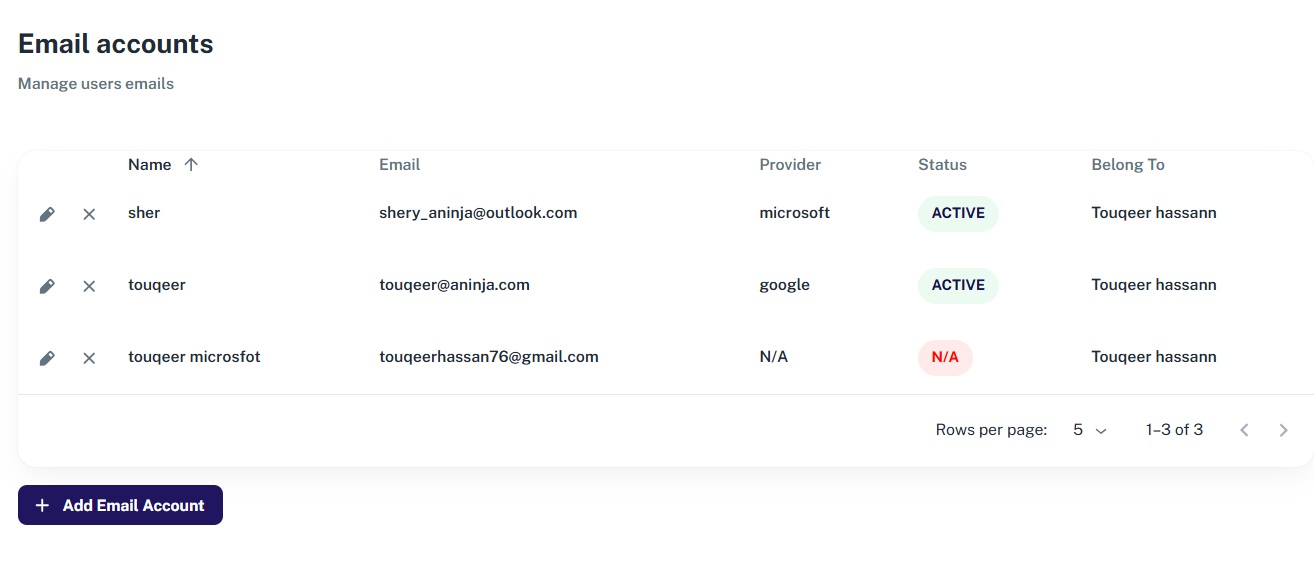
Active
This status means your email is fully synced and functioning as expected. All folders, contacts, and emails are syncing smoothly.
Stopped
This status appears when sync has been manually stopped or failed due to repeated errors. If needed, re-authenticate or update the connection to resume syncing.
N/A
This status typically appears when an email is not connected, has been removed, or isn’t currently syncing. If an email needs to be reconnected, consider editing the account settings to re-authenticate or reconfigure the sync.