How Can We Help?
Creating Text & Email Sequences
By creating Text & Email Sequences, you can automate scheduled sequences of texts or emails.
Creating Text Sequences
- On the left sidebar, click on Automations > Text Sequences
- Click on Add Text Sequence
- Give a name to your text sequence.
- Add each step to your text sequence:
- Select when you want the step to be sent:
- “Immediate”: Sends the step within the acceptable text time window defined in Global Settings.
- “Immediate (skip global settings validations)”: Sends the step immediately after the sequence is launched, ignoring time restrictions.
- Or set the number of days after which to send the step.
- Choose which text template to use in this step.

- Select when you want the step to be sent:
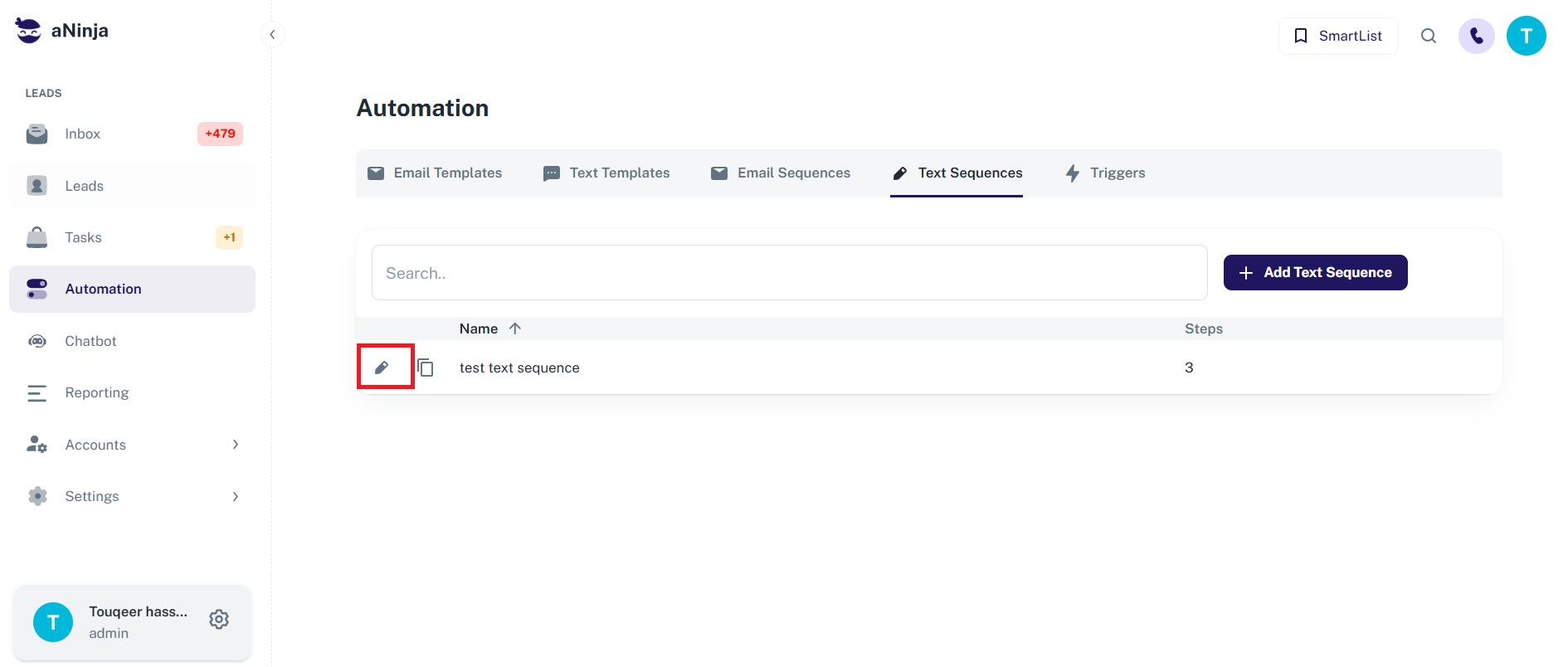
- To edit the template used in a sequence step, click the pencil icon on the leftmost side of the sequence row.


Creating Email Sequences
- On the left sidebar, click on Automations > Email Sequences
- Click on Add Email Sequence
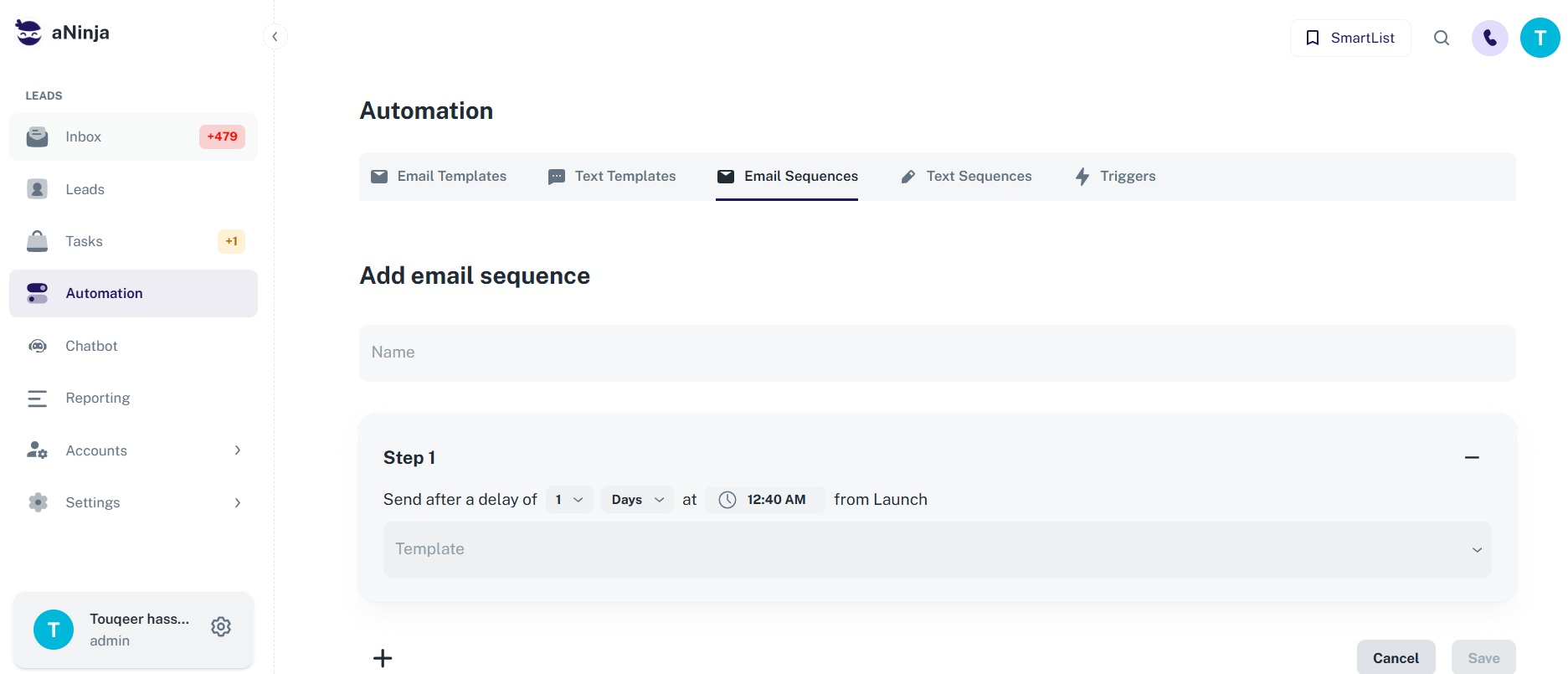
- Give a name to your email sequence.
- Add each step to your email sequence:
- Select when you want the step to be sent:
- Set to send after a delay of 0 (zero) days to launch immediately.
- Or define the number of days after launch to send the step.
- Choose which email template to use in this step.
- Select when you want the step to be sent:
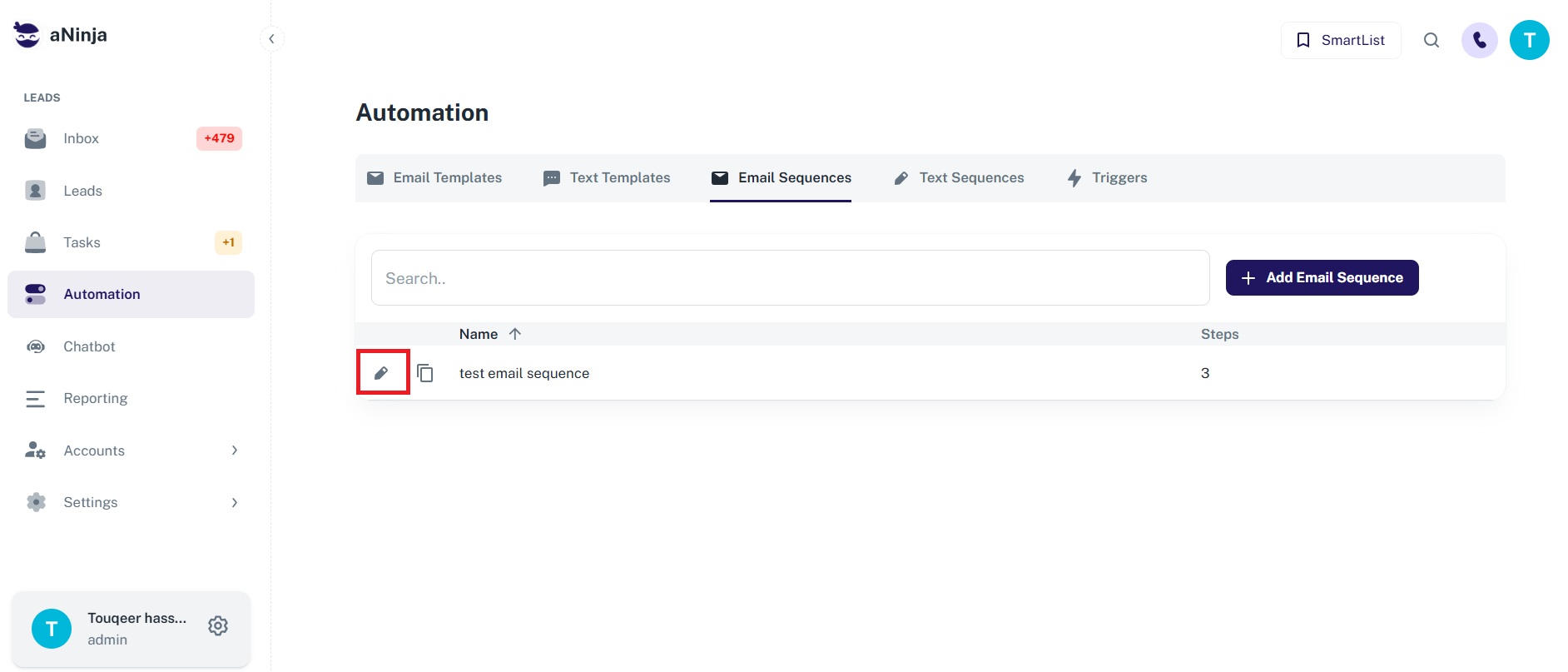
- To edit the template used in a sequence step, click the pencil icon on the leftmost side of the sequence row.


Conclusion
Creating text & email sequences allows you to use them in your triggers and target your leads more effectively to turn them into customers!