How Can We Help?
Adding aNinja Chatbot to Your Website
Before embedding the chatbot, you’ll first want to create your widget using the aNinja chatbot setup screen.
How to Get the aNinja Chatbot Embed Code
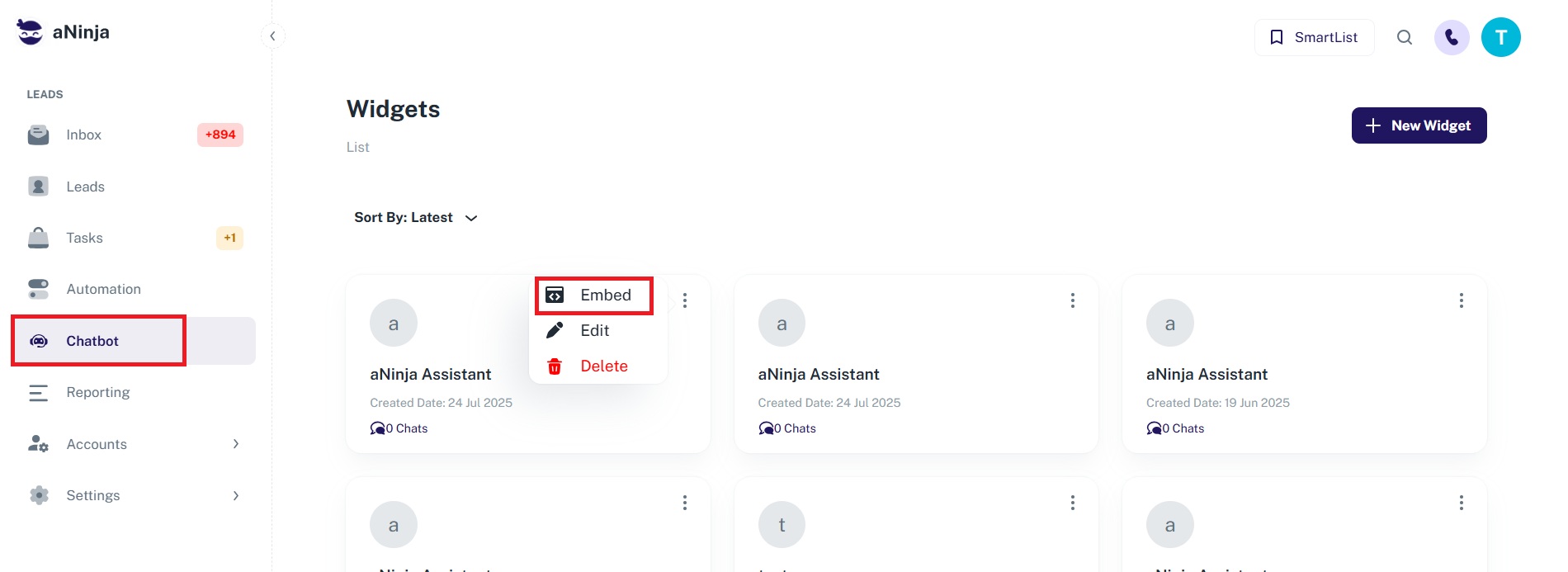
- From the aNinja left sidebar, click Chatbot.
- If you’ve created chatbots before, they’ll appear as widgets. Click the ⋮ (three dots) on a widget and select Embed.
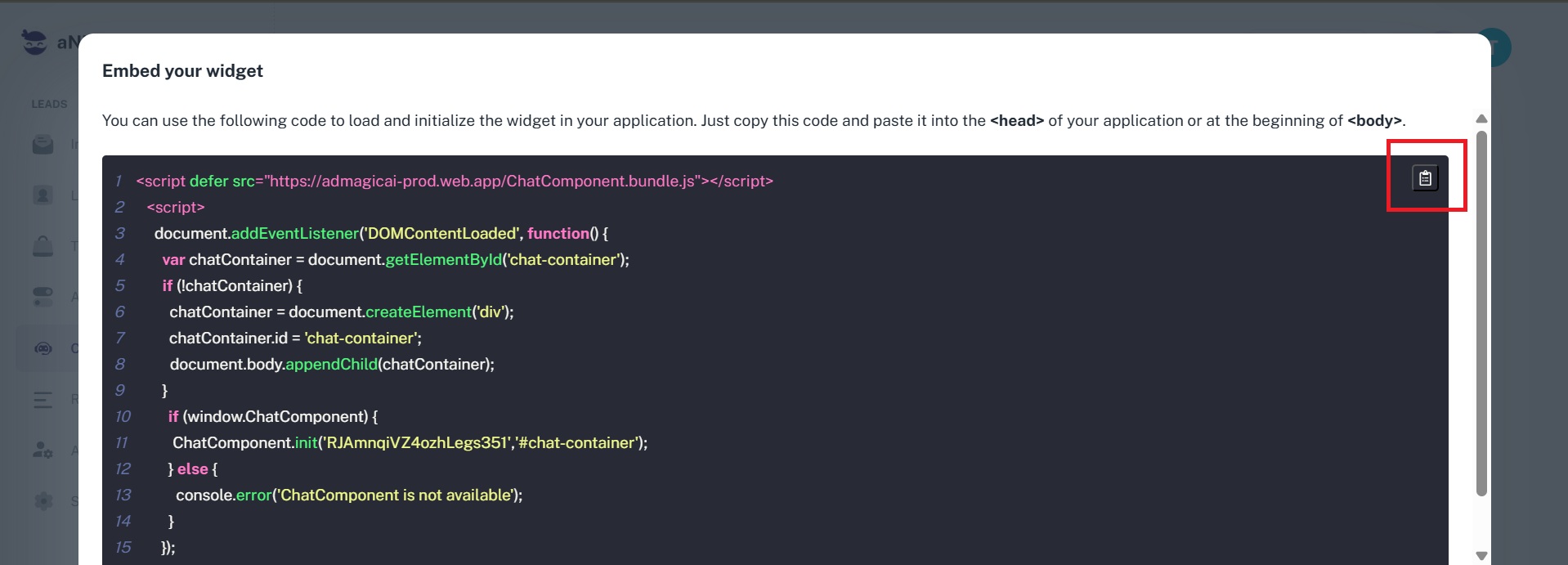
- A popup will appear showing your unique chatbot embed code. Click Copy to save it to your clipboard.
Where to Paste the Embed Code
- Paste the JavaScript snippet into your website’s HTML before the closing
</body>tag or in the<head>section. - This will load the chatbot widget on all pages where the code is present.
- If you’re unsure how to do this, email us at [email protected] and we’ll help you out!
Platform-Specific Embedding Guides
Choose your platform to view detailed instructions:
What Happens After Embedding
- After a user interacts with the chatbot, a new lead is automatically created in your aNinja account with the captured information.
- If a user closes the chat before you respond, your message will still appear in a bubble next to the chatbot on their next visit.
View Chatbot Conversations
- You can view chatbot conversations in your Dashboard widget called “Chatbot Conversations.”
- If you don’t see this widget, click the gear icon on th