How Can We Help?
Adding aNinja Chatbot to a GoDaddy Website
Adding aNinja Chatbot to your GoDaddy site is simple using a Javascript snippet—your aNinja Chatbot Embed Code.
First, find your Chatbot Embed Code inside your aNinja account.
- Log in to your GoDaddy account
- Go to the Product page.
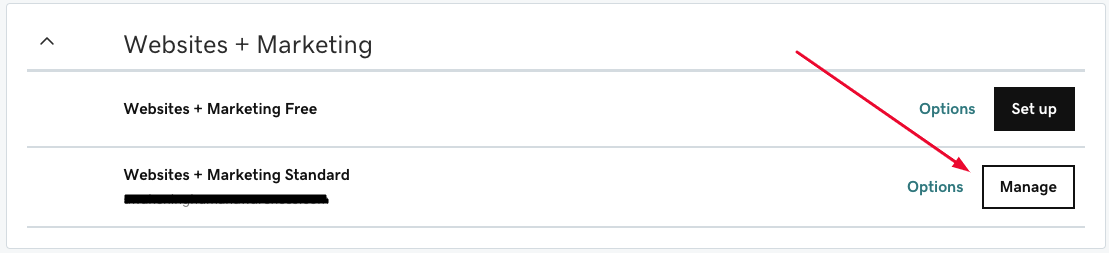
- Under Websites + Marketing, click Manage next to your website.
- Select Edit Website or Edit Site to open the website builder.
- Choose the page where you want to add the chatbot widget, or create a new one using the + button.
- Search for the HTML section and click Add.
- Click Embed custom code on the page.
- In the custom code box, paste your aNinja Chatbot Embed Code and include:
data-platform="godaddy"
Example:
<script async data-chatplaybook_id="<CHATPLAYBOOK_ID>" data-tenant="<TENANT>" data-platform="godaddy" src="https://aninja.com/chatbot/chatwidget_embed_script.js"></script> - Click Done at the top of the HTML panel. Your changes will be saved automatically.
- Click Preview to review, then Publish to make the chatbot live.
- Conversations appear in the Inbox. Simply open the Inbox to view them under general message flow—there is no specific “Chatbot” dropdown filter anymore.
- You can also track chatbot activity through the Dashboard widget labeled “Chatbot Conversations.” If it’s hidden, enable it using the gear icon on the dashboard.
- Show greeting on every visit
- Hide greeting on load
- Delay the chatbot popup
- Custom styling of widget container
Where do the Chatbot Conversations appear in aNinja?
Each chatbot interaction creates a new lead inside your aNinja system, including the conversation data.
If a user ends the chatbot session before you reply, your message will appear in a floating bubble on the site next to the chatbot.
Chatbot Behavior
By default, the chatbot auto-triggers only on the first visit to prevent annoyance. On future visits, it stays minimized in the lower-right corner.
The chatbot behavior can be customized. You can request changes like:
Need help? Email us at [email protected] and we’ll assist you!