How Can We Help?
How to Enable Email Sync with Microsoft Accounts in aNinja
Having trouble connecting your Microsoft email to aNinja?
Don’t worry — this happens because Microsoft requires admin approval for apps that access mailboxes until the app is fully verified.
With a simple one-time approval by your organization’s admin, all users will be able to sync their emails without issues.
Why this happens
Microsoft requires an administrator to grant permission for apps requesting access to emails or calendars when they are not yet verified.
Once your admin approves access for your organization, everyone in your company can connect their Microsoft mailbox seamlessly through aNinja.
Two ways to grant admin consent
1. Using the Admin Consent URL
- Open this link in your browser (as a Microsoft 365 Global Admin):
https://login.microsoftonline.com/common/adminconsent?client_id=6ac9e9ef-d2b7-433e-90d4-6d8ceb0fb11a&redirect_uri=https://auth.aninja.com/v3/connect/callback - Sign in with your Microsoft 365 Global Admin account.
- Review the permissions requested by aNinja and click Accept.
Make sure to check the box “Consent on behalf of your organization”. - Once approved, all users in your Microsoft 365 tenant will be able to connect their mailboxes from aNinja without further admin approval.
2. By syncing the Admin email directly from aNinja
- Log in to aNinja.
- Go to Settings → Email Accounts → Add New Account and choose Microsoft.
- During authentication, you will see a consent screen.
Check the box “Consent on behalf of your organization” and click Accept.

- This will approve the app organization-wide, and all users in your company can now connect their Microsoft mailboxes without restriction.
- After granting consent, if you prefer not to keep your own mailbox connected,
you can remove it from Settings → Email Accounts in aNinja by clicking Delete next to your email account.
What if you’re not an admin?
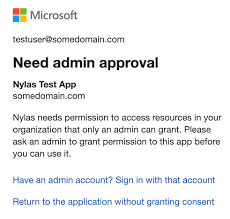
If you see a message like “Need admin approval” while trying to connect your email,
it means your organization’s IT administrator needs to complete one of the steps above.
Please share this article with them so they can approve the connection for your organization.
After admin approval
- All users in your company can connect their Microsoft mailboxes easily through aNinja.
- The admin only needs to grant consent once per organization.
- Once the consent is granted, users will no longer see the “unverified app” message.
Next steps
Our Microsoft app is currently undergoing publisher verification with Microsoft.
Once this process is complete, no admin approval will be required, and the consent screen will display our verified brand name.
Until then, following either of the steps above will ensure that your organization’s email sync works smoothly.
Need help setting this up? Contact us at
[email protected] and our team will gladly assist you.