How Can We Help?
aNinja Templates
aNinja Templates include Text (SMS), Email, or Notes templates that you can create and reuse to save time and maintain consistency in your communications.
When replying or forwarding an email, if you select a template, it replaces the existing message with the pre-defined content from the template.
Creating an Email Template
- On the left sidebar, click on Automations > Email Templates.
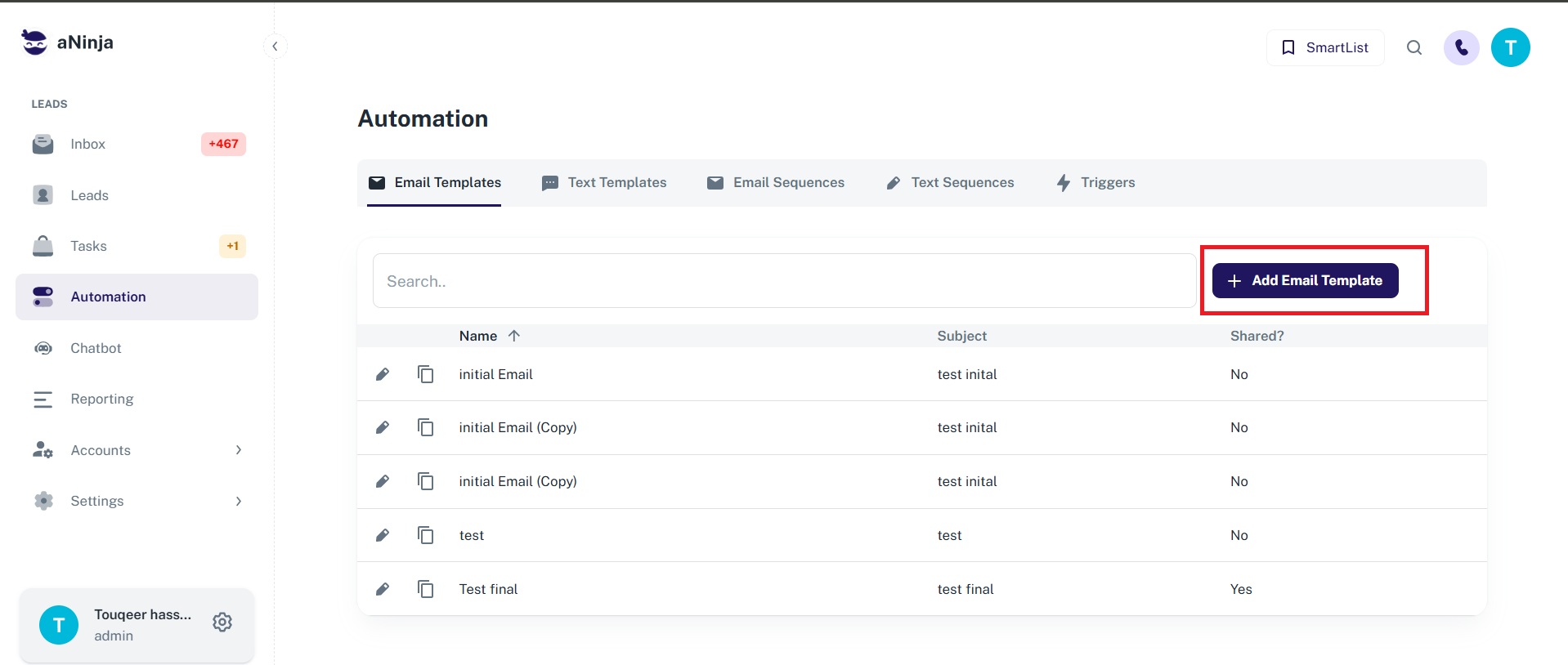
- Click on + Add Email Template.
- Give your template a relevant name.
- Enter the email content. You can use variables from the variables dropdown.
- We recommend including an Unsubscribe link.
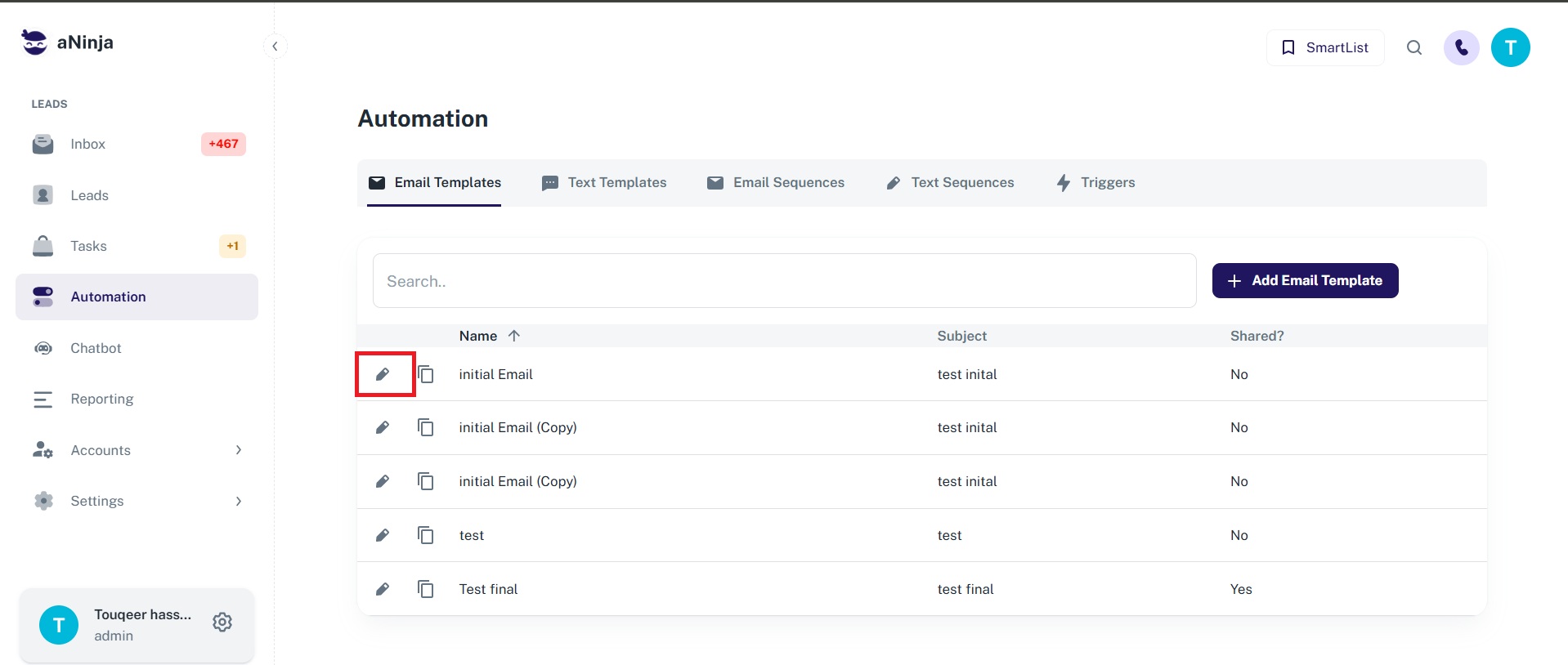
- Click on the edit pencil icon next to the template.
- Make your changes and click Update.
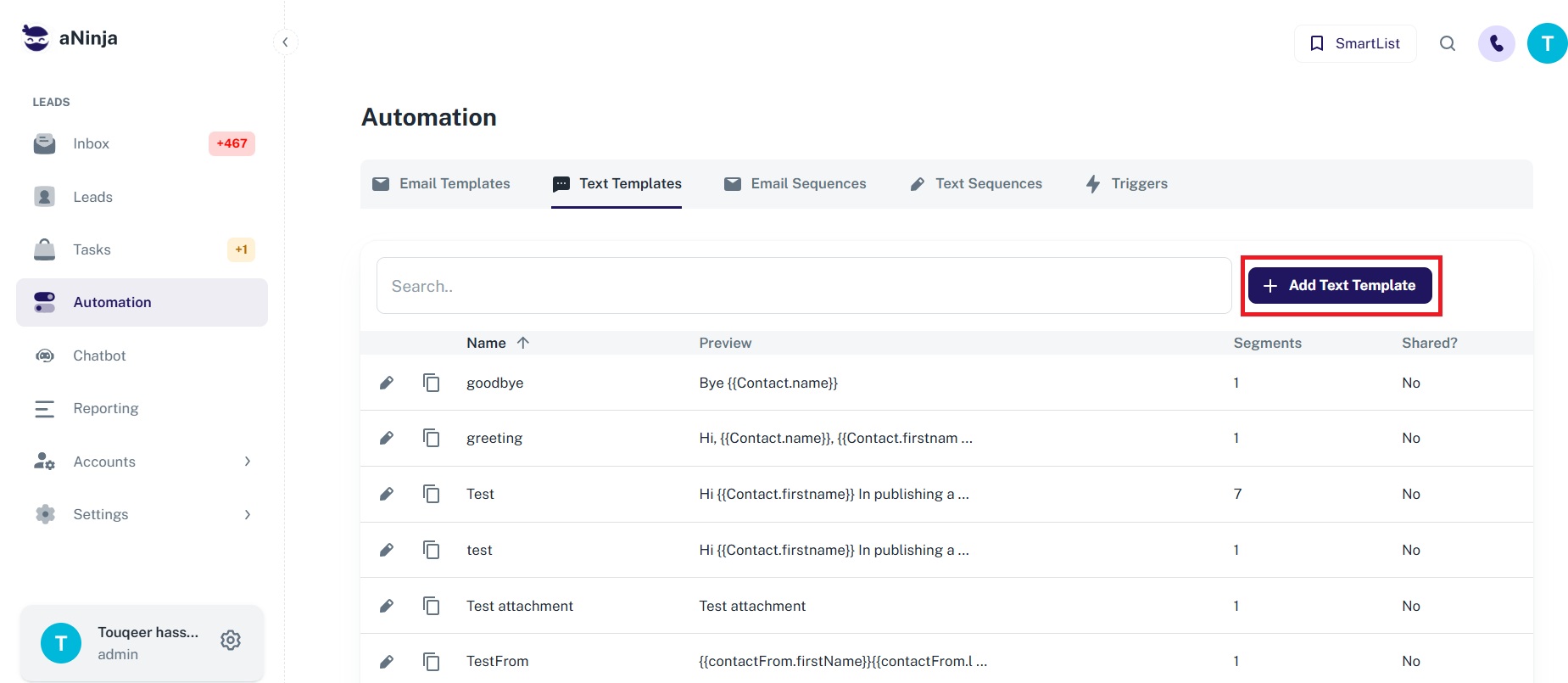
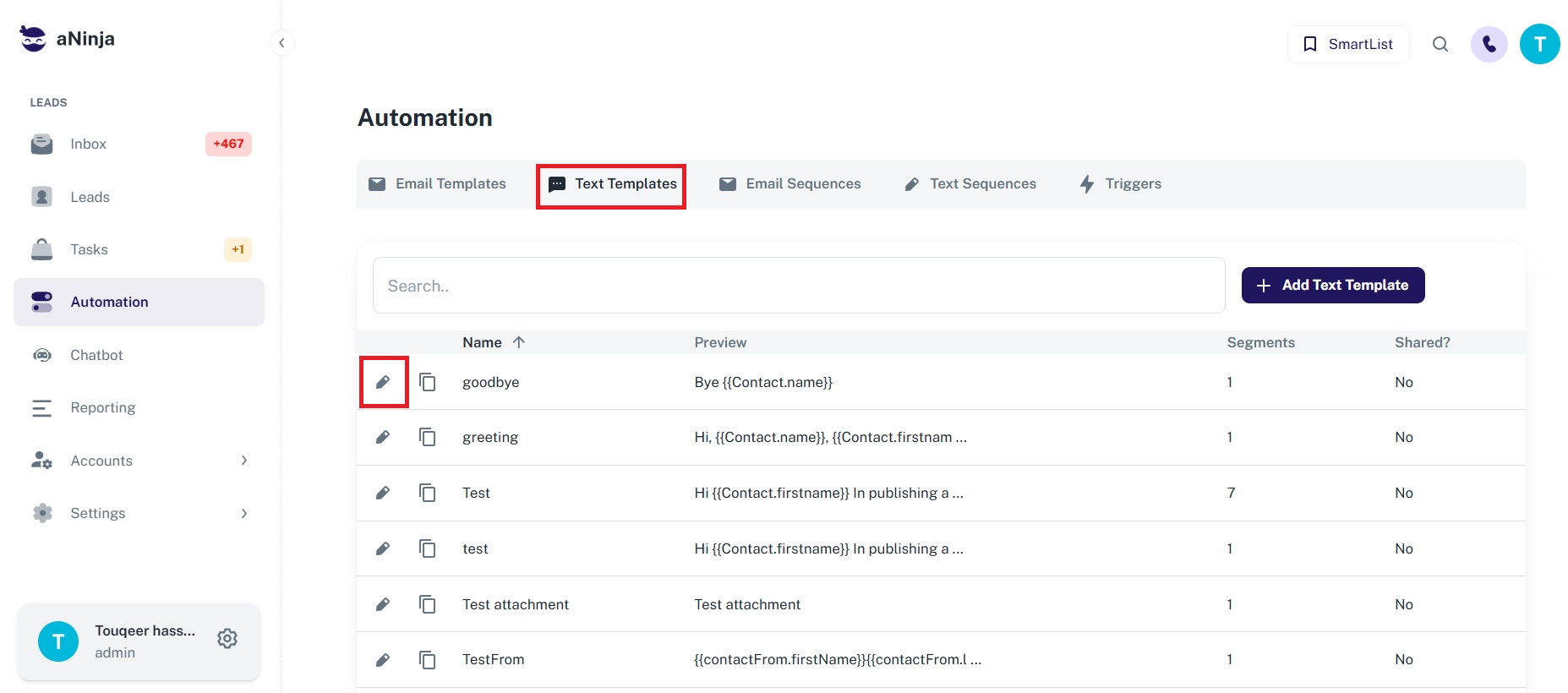
- On the left sidebar, click on Automations > Text Templates.
- Click on + Add Text Template.
- Give your template a meaningful name.
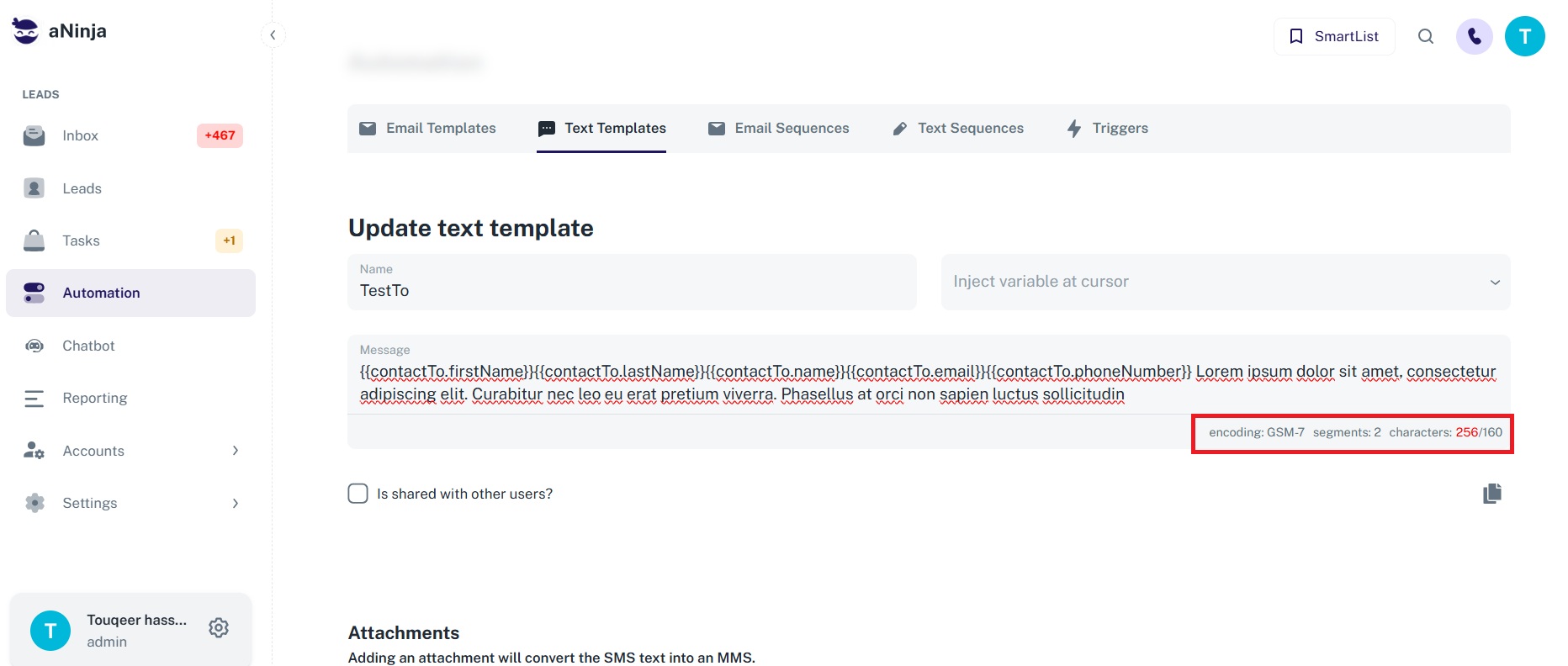
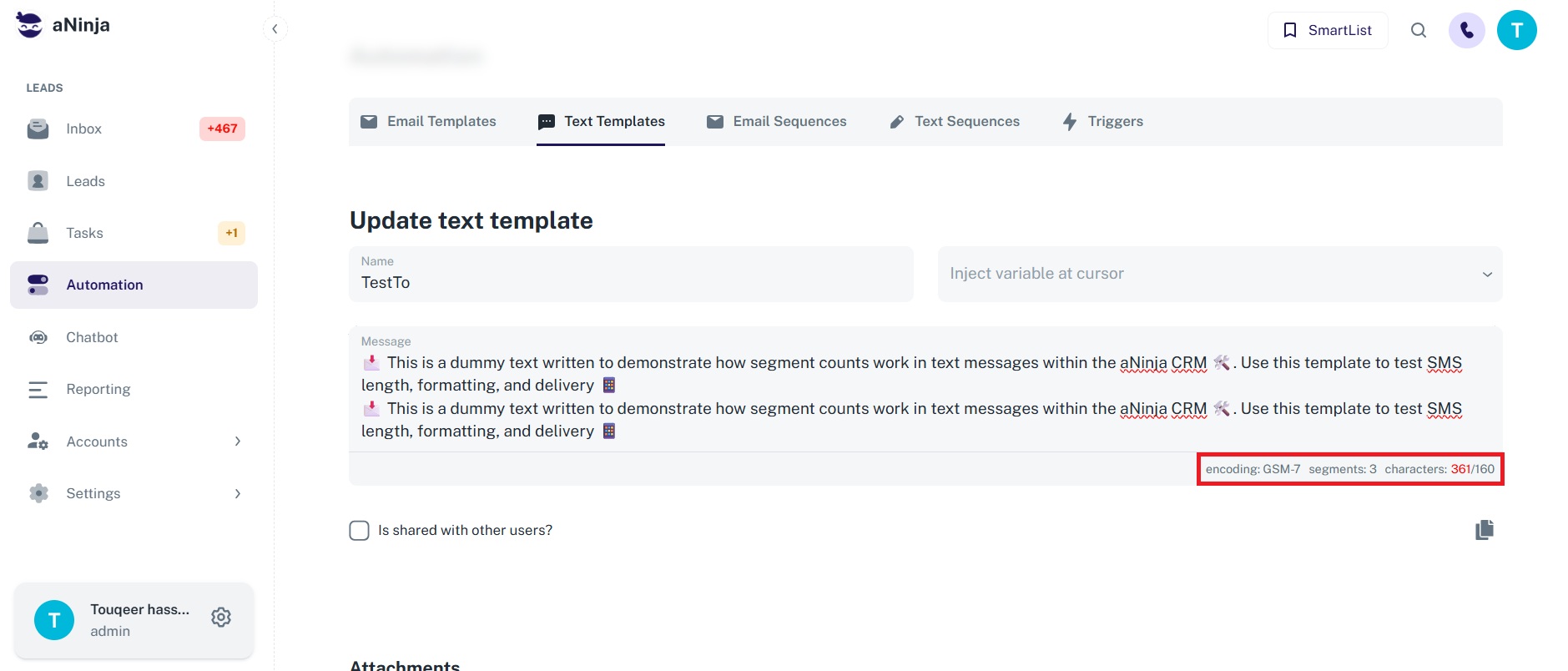
- Type your text content and include variables from the dropdown as needed.
- Use the character counter at the bottom to monitor SMS length. Each 160 characters count as one SMS segment.
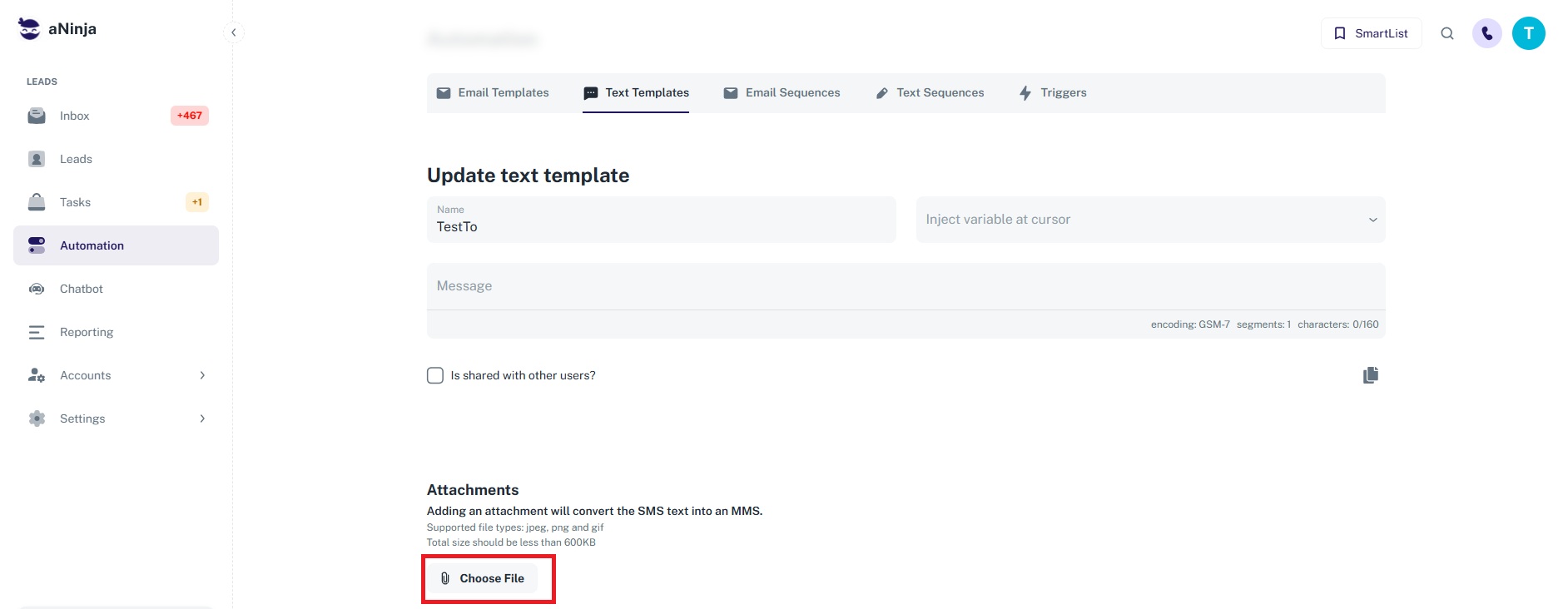
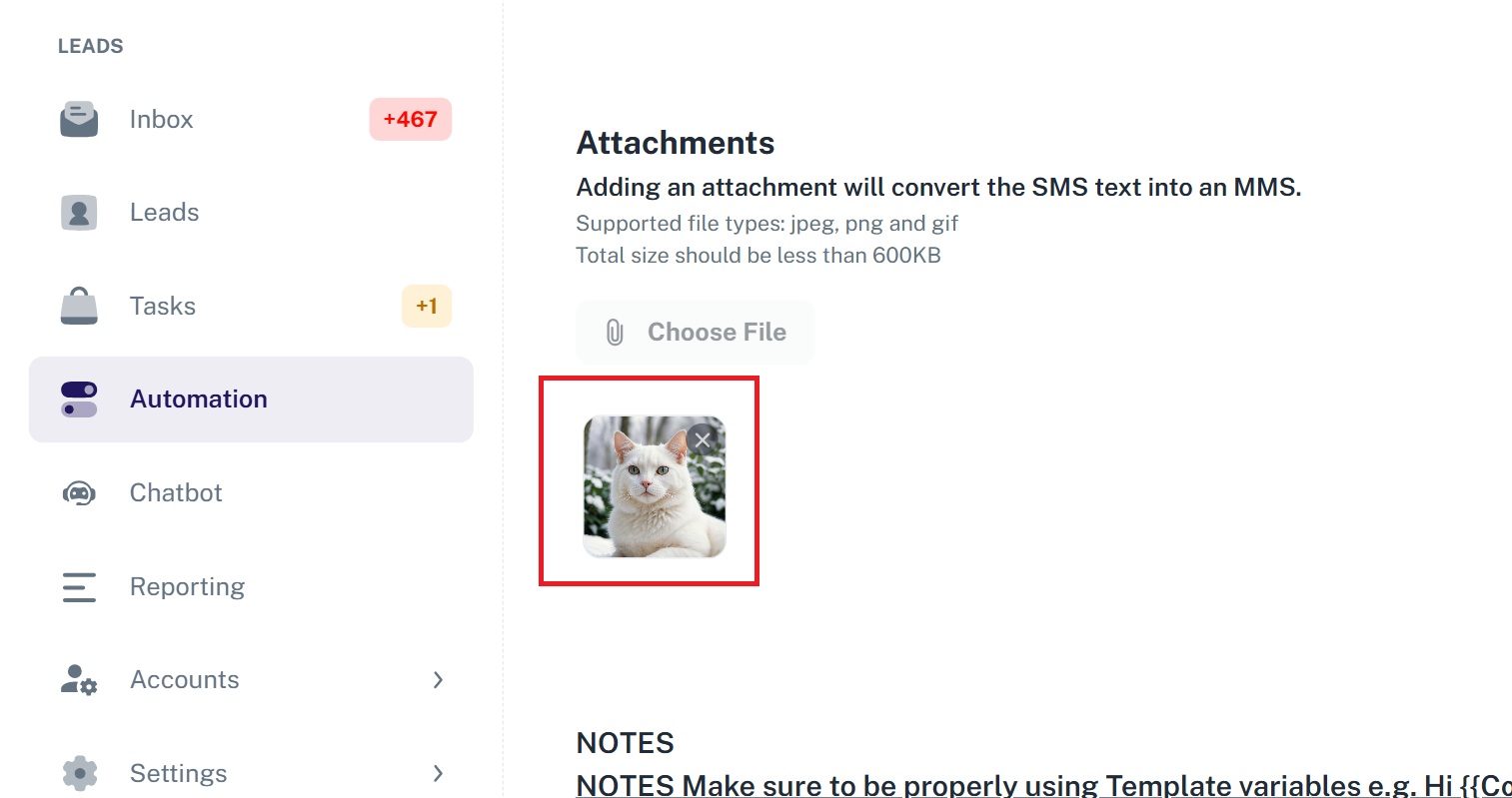
- To add an image attachment (MMS), click “Choose file”.
- Supported file types: jpeg, png, gif (Max size: 600KB).
- To remove an attachment, click on “Cross on the attached file”.
- Click on the edit pencil icon next to the template.
- Make your changes and click Update.
- To send a text to a single lead from the Lead view
- In Text Sequences
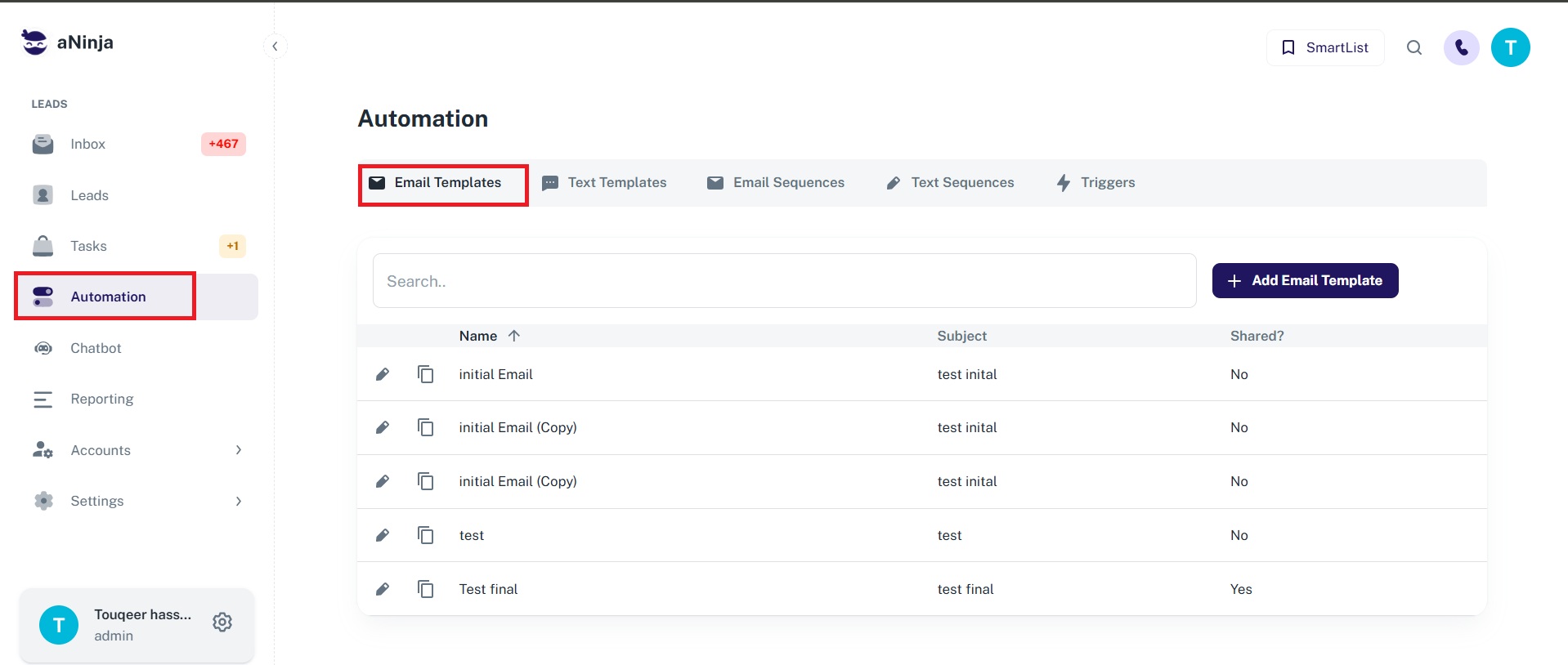
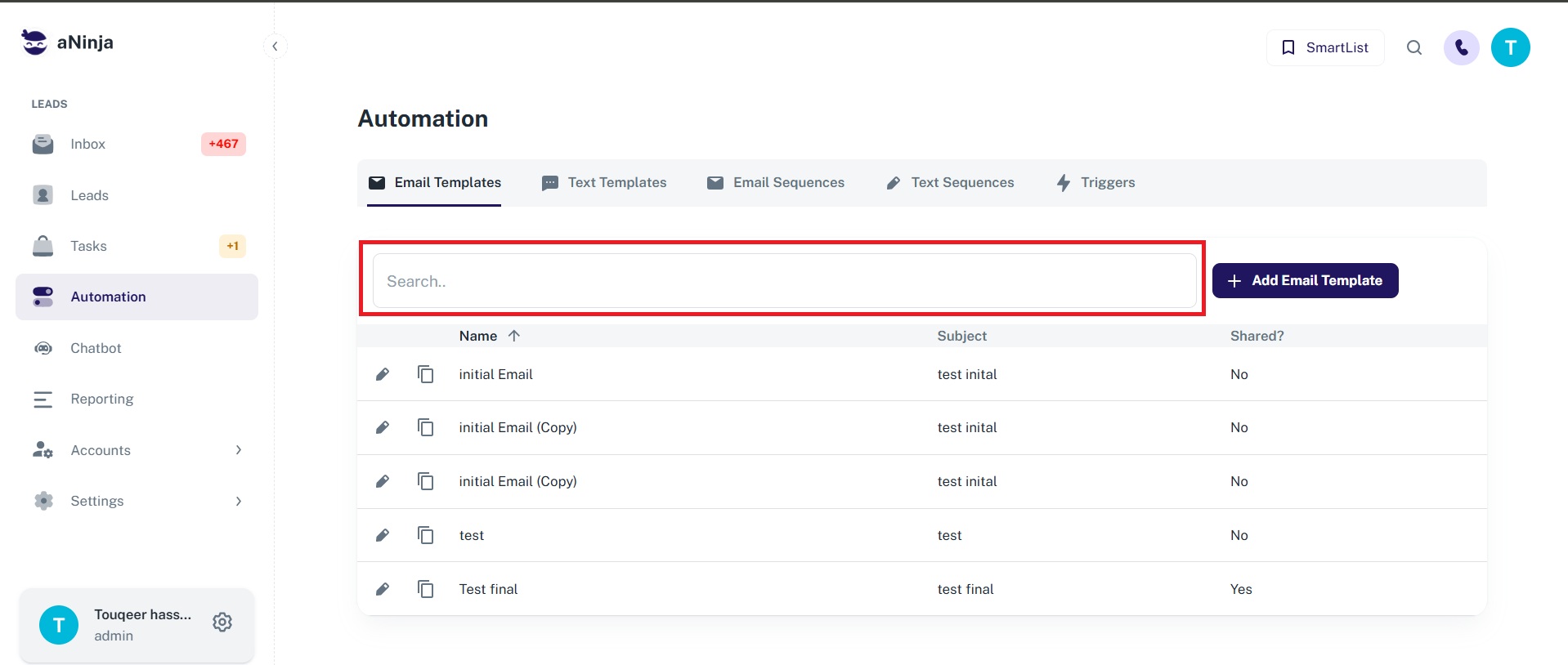
Filtering Email Templates
You can filter your templates by typing a keyword into the search bar.
Adding an Email Template
Learn more about Transactional Emails.
Editing an Email Template
Once saved, you can reuse your Email Template in the Lead view, in Email Sequences, and in Triggers.
Tip: aNinja auto-saves your work every few seconds to prevent loss due to unexpected shutdowns.
Discover strategies to avoid your emails being marked as spam.
Creating a Text Template

Filtering Text Templates
You can filter your text templates by typing keywords into the search bar.

Adding a Text Template
Adding or Removing Attachments
Editing a Text Template
We recommend adding an Unsubscribe link so recipients can opt out.
Once saved, you can reuse your Text Template:
Tips to prevent your texts from being marked as spam
Note: Ensure your template has content before saving. Empty templates may cause sequence launches to fail.
aNinja automatically auto-saves your work every few seconds.
Need Help?
If you have any questions, please email our support team at [email protected]. We’ll be happy to assist you!